New article
Recently updated
Configuring trajectory visuals

Who is this article for?
Users looking to customise their trajectory view.
No special access or permissions are required.
This article walks you through configuring the trajectory visuals, and how you can export the adjusted map for record keeping.
Configuring trajectory visuals
To configure trajectory visuals:
- Go to the Trajectories module.
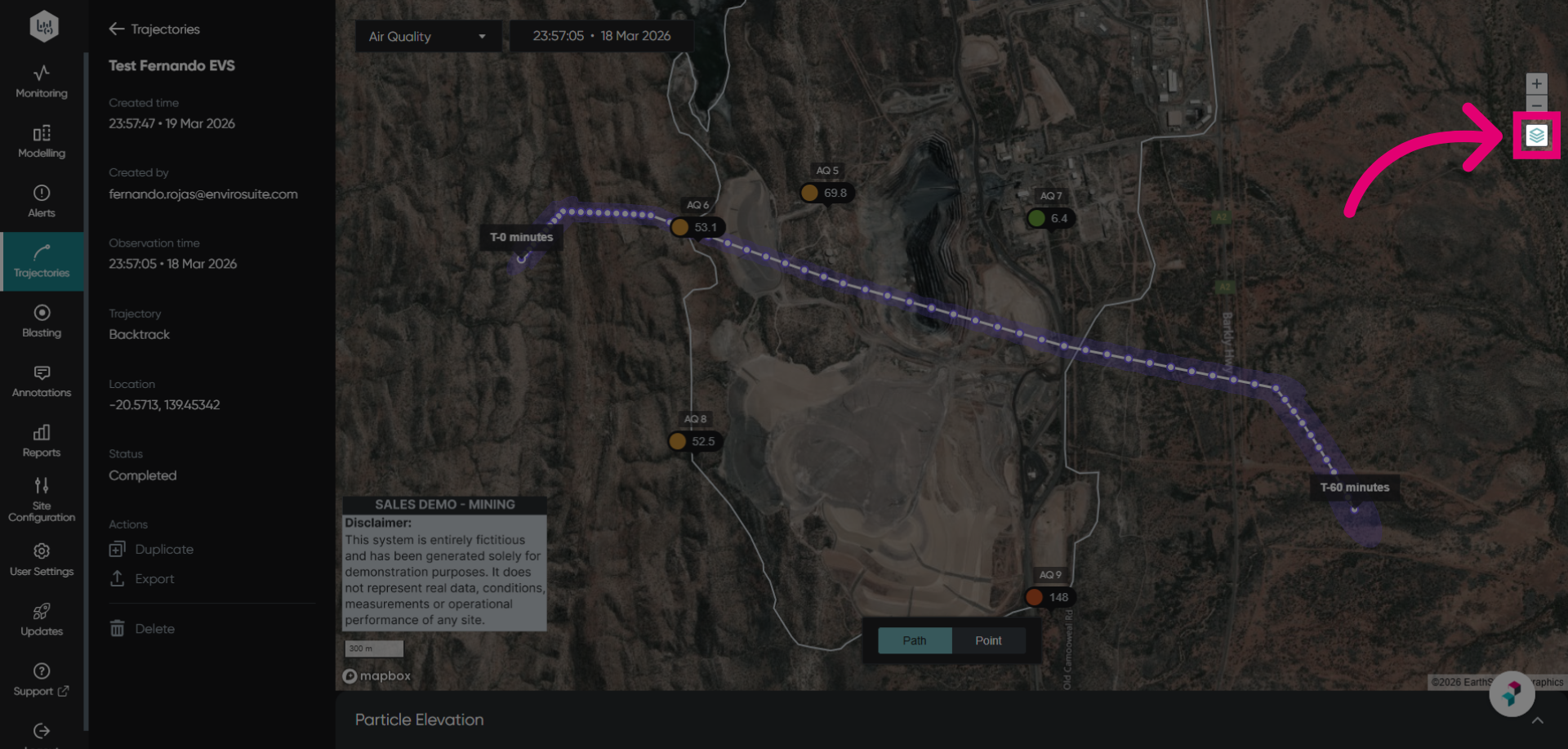
- Open the Overlays menu.
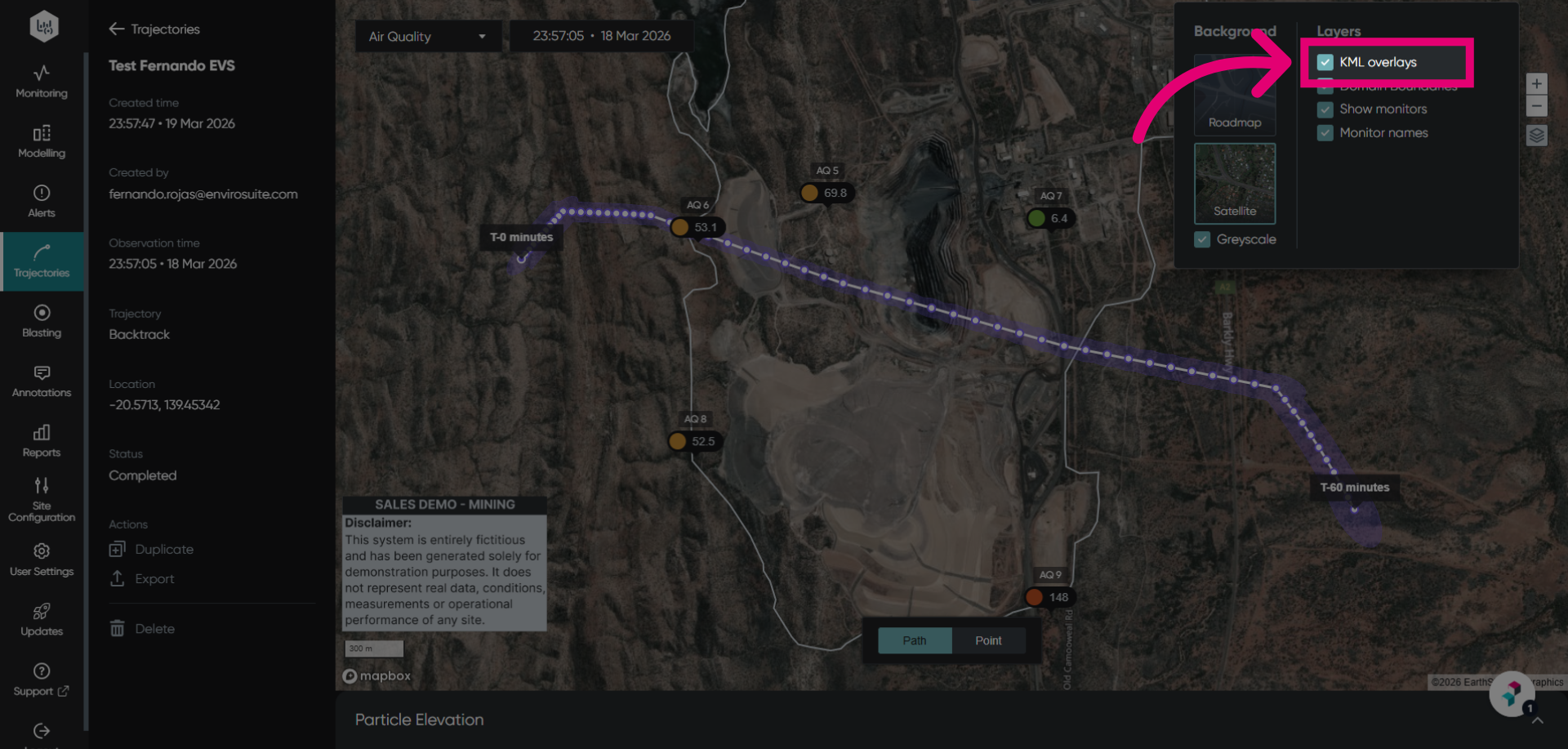
- Tick or untick KML overlays to view or hide the custom KML overlay on the map.
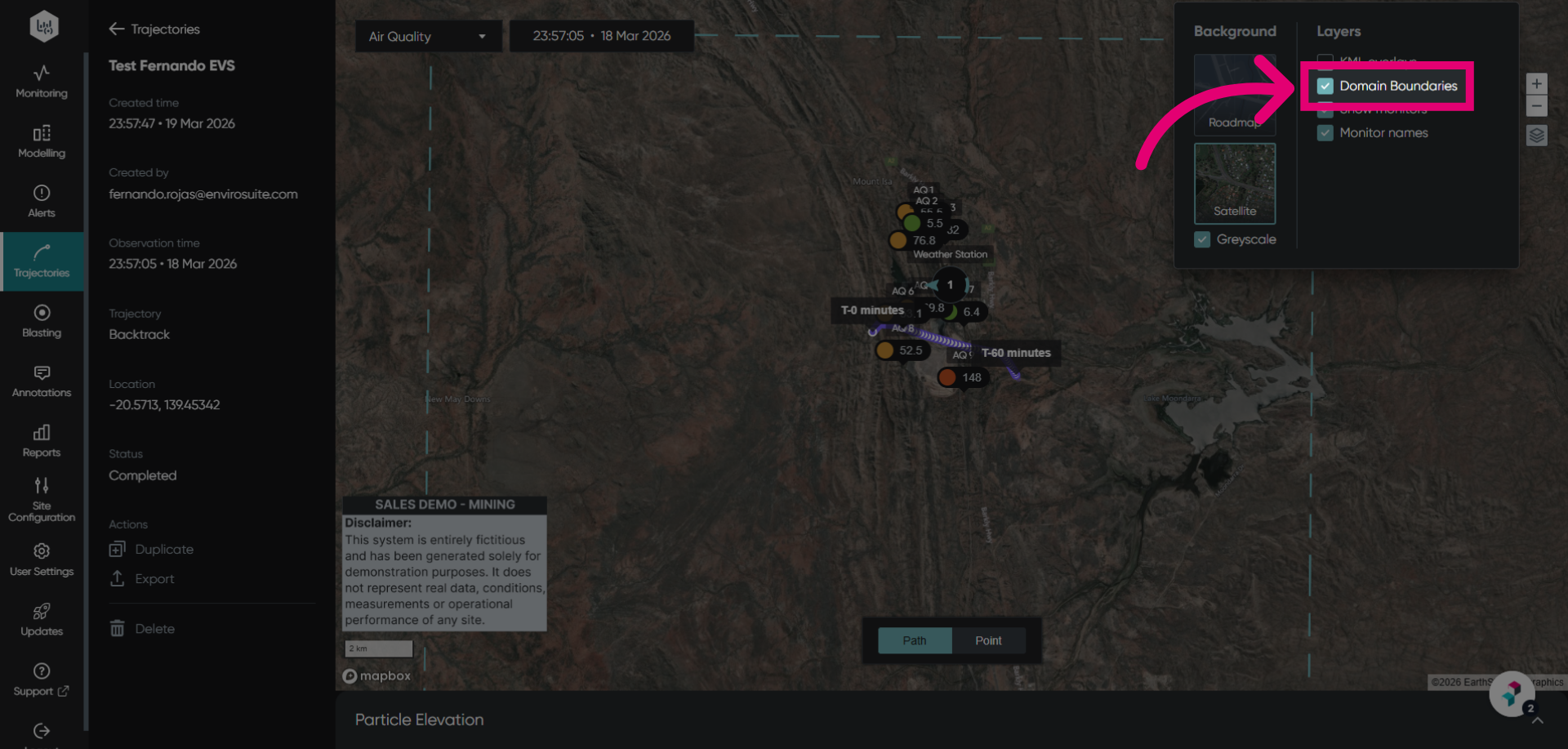
- Tick or untick Domain Boundaries to view or hide the modelling domain boundary on the map.
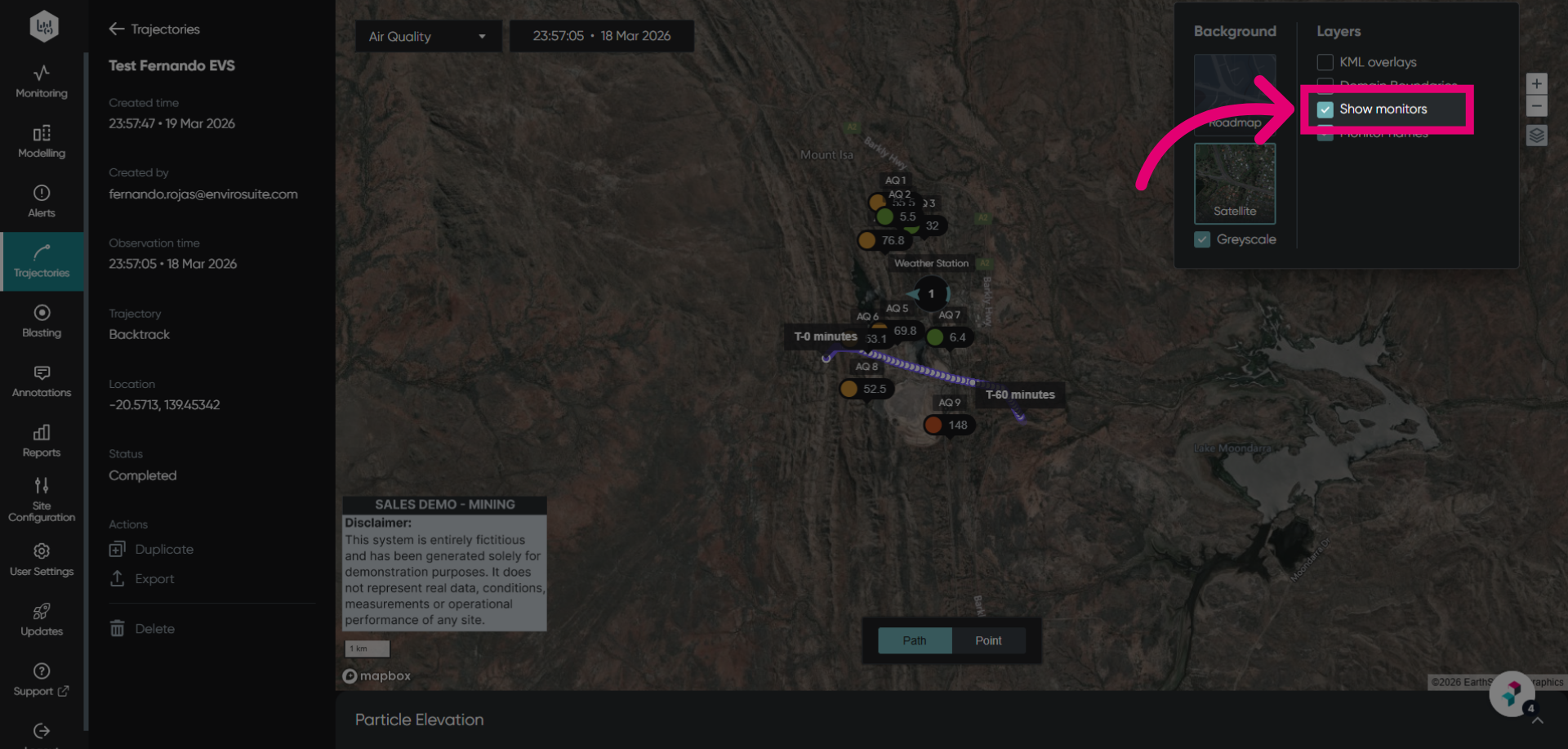
- Tick or untick Show monitors to view or hide the monitoring points.
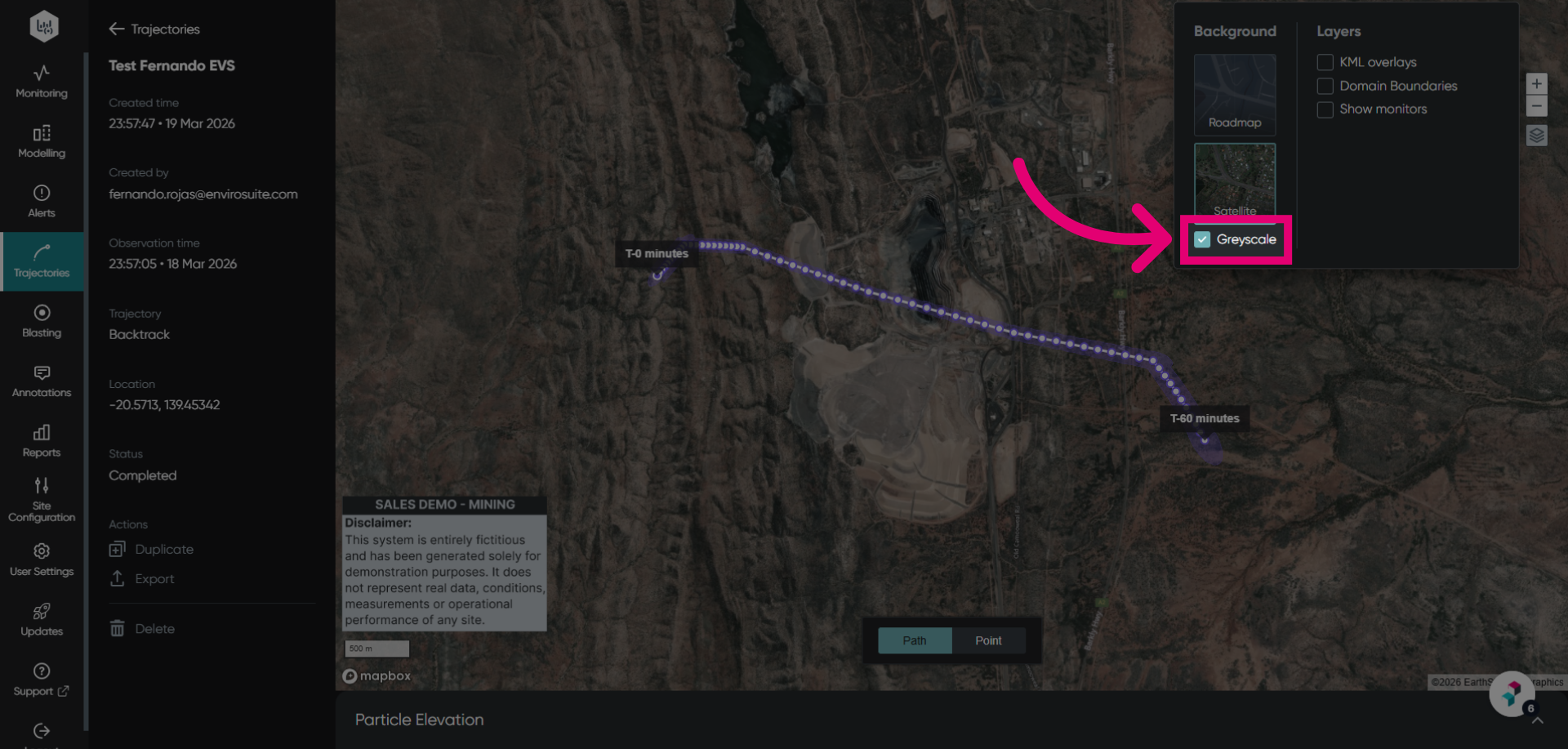
- Tick Greyscale to apply a greyscale filter to your map overlays for better contrast.
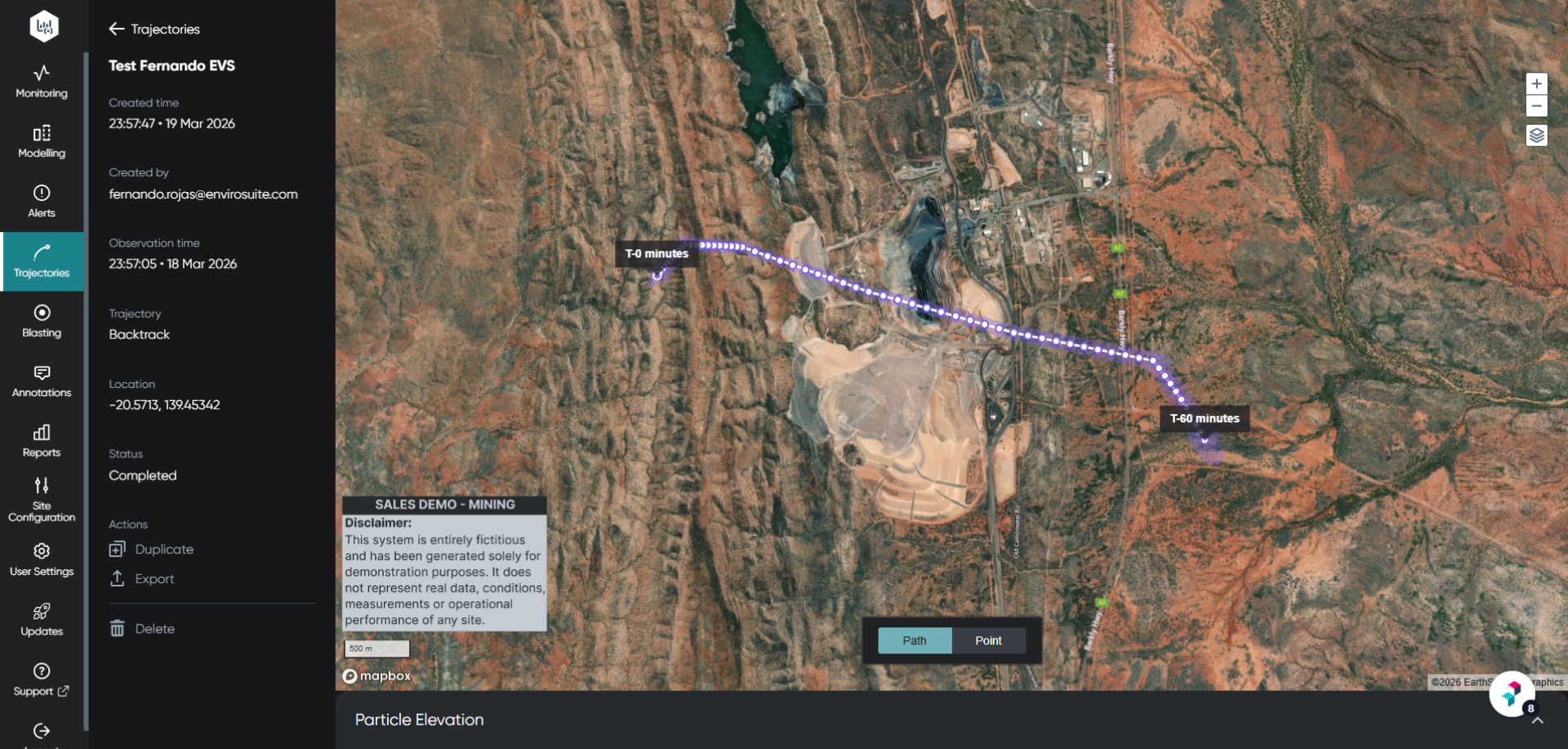
- Review selected visual configuration and adjust as needed.
Exporting trajectory visuals
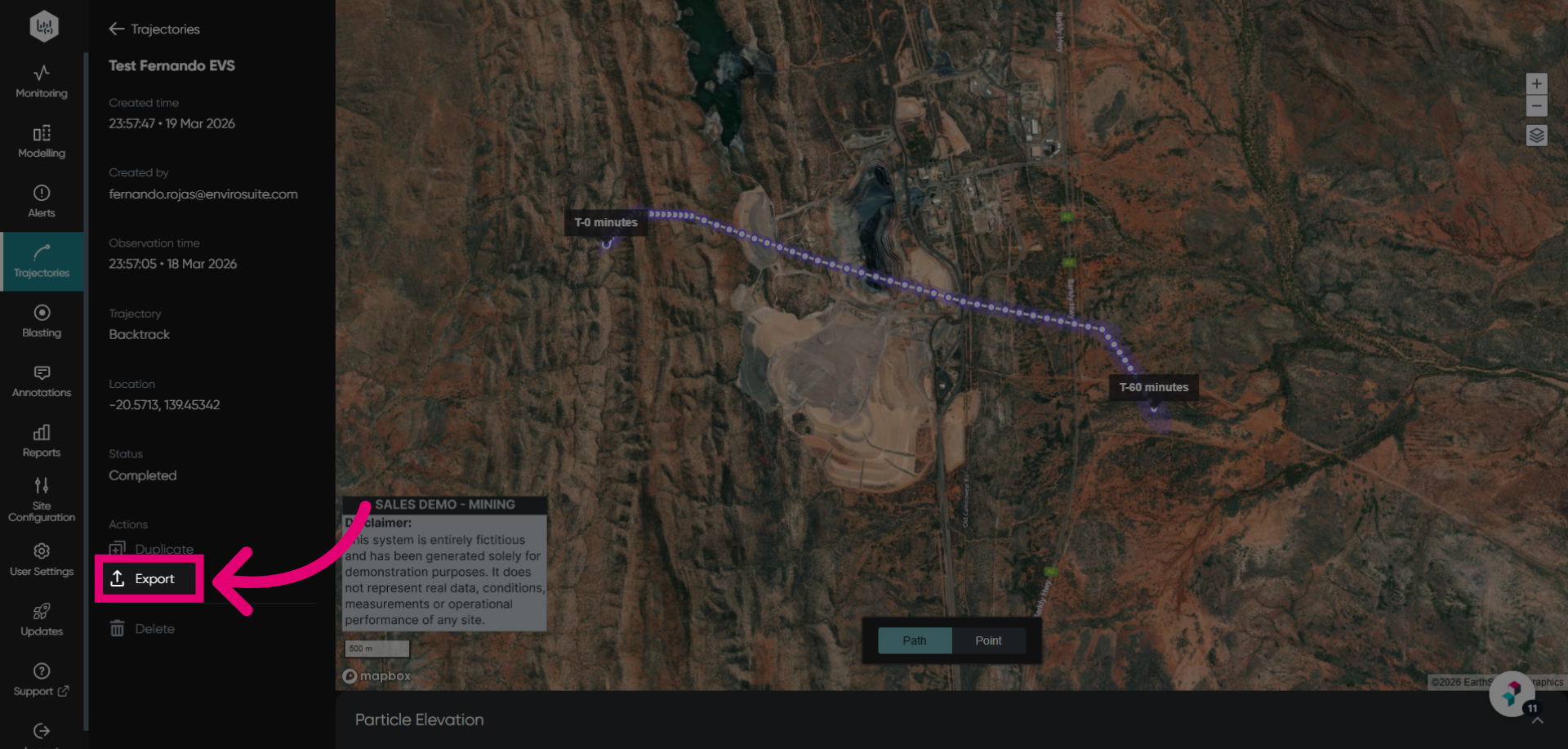
To export your configured trajectory visualisation, click Export. This can then be shared with other team members or saved locally on your network.