New article
Recently updated
Generating data trend reports

Who is this article for?
User wanting to create a Data Trend Report.
No special access or permissions are required.
This tutorial guides you through generating data trend reports using Ideagen Envirosuite.
You will learn how to customize report details and export the report as a PDF file.
Generating a data trend report
To generate a data trend report:
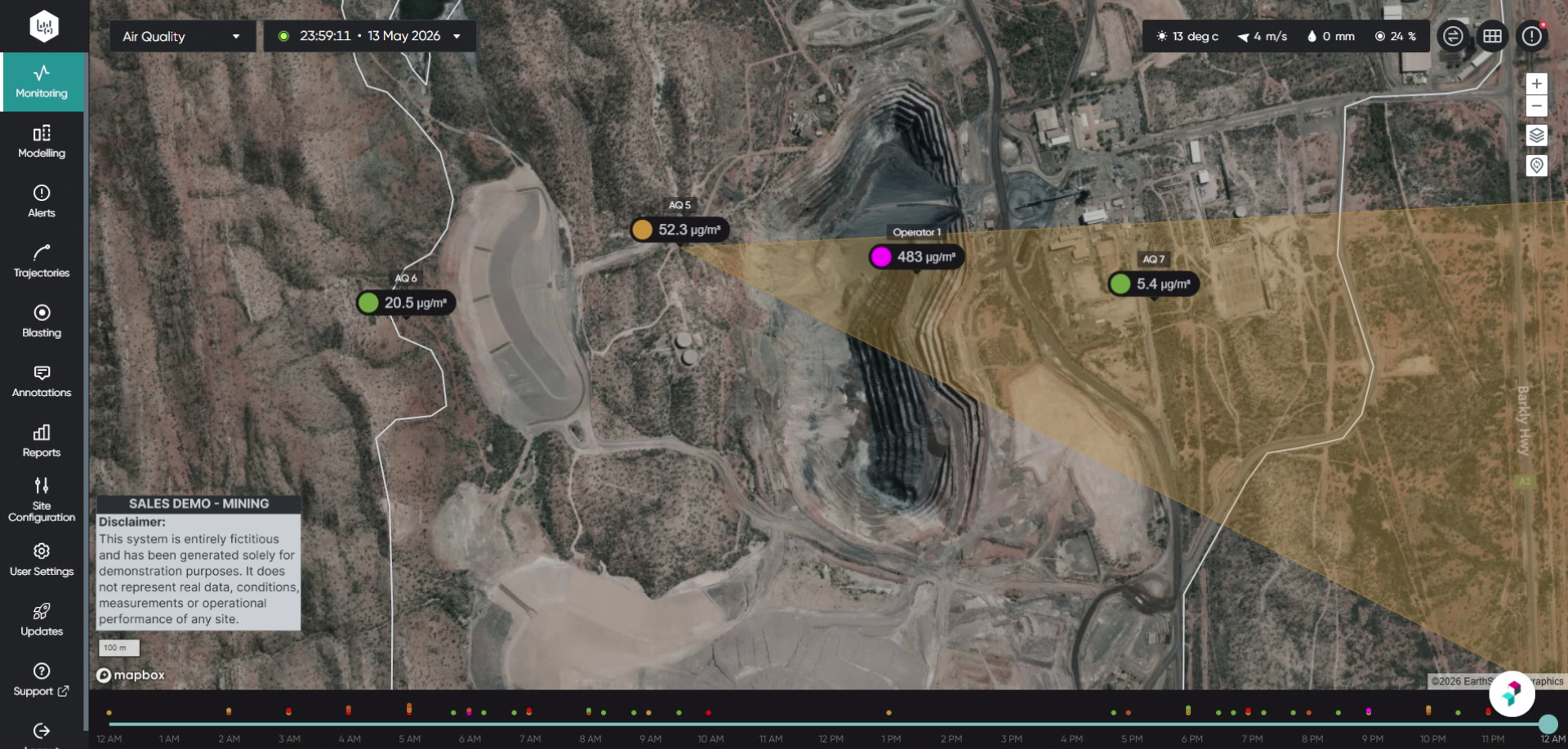
Log into the system.
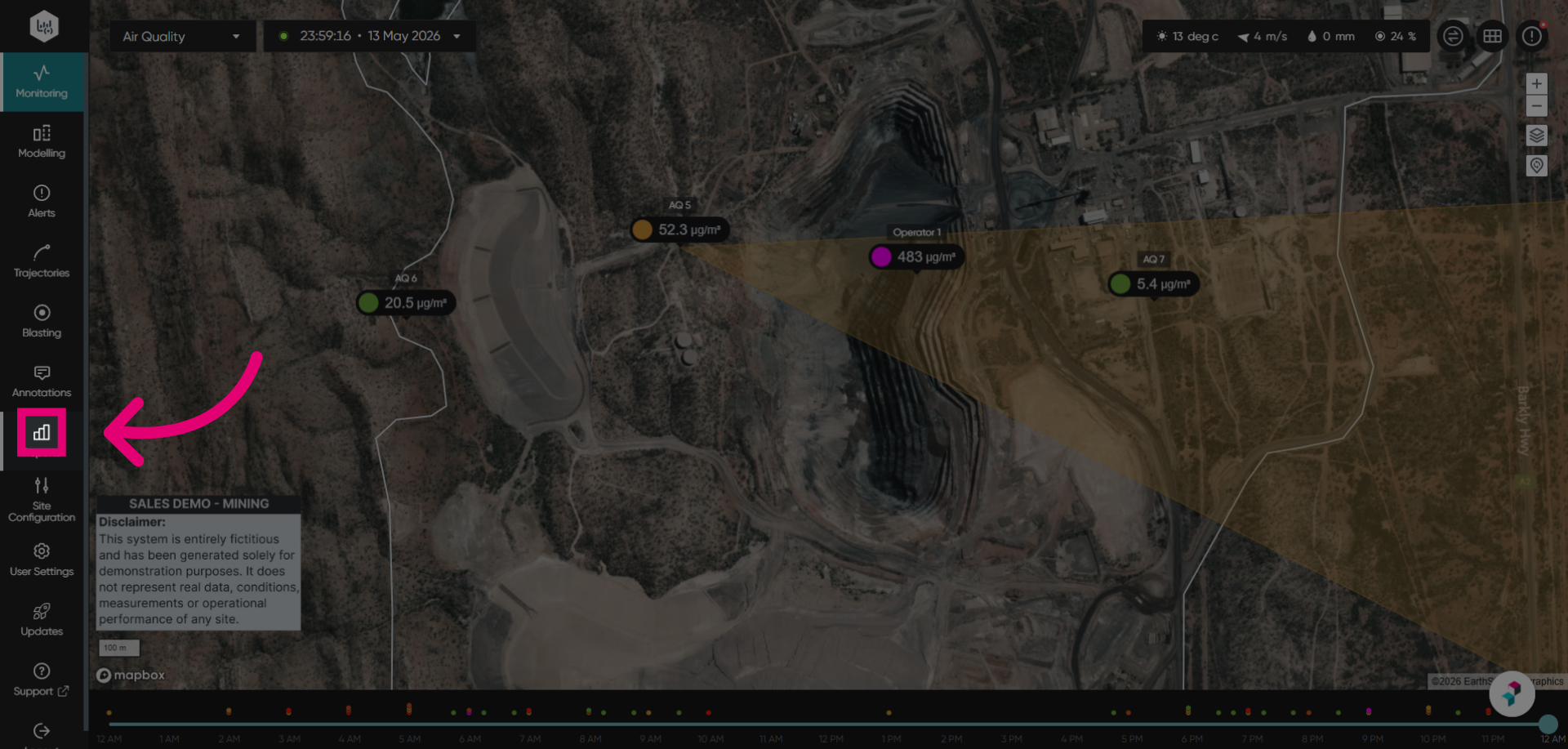
Click the report options menu to open the report options in Envirosuite.
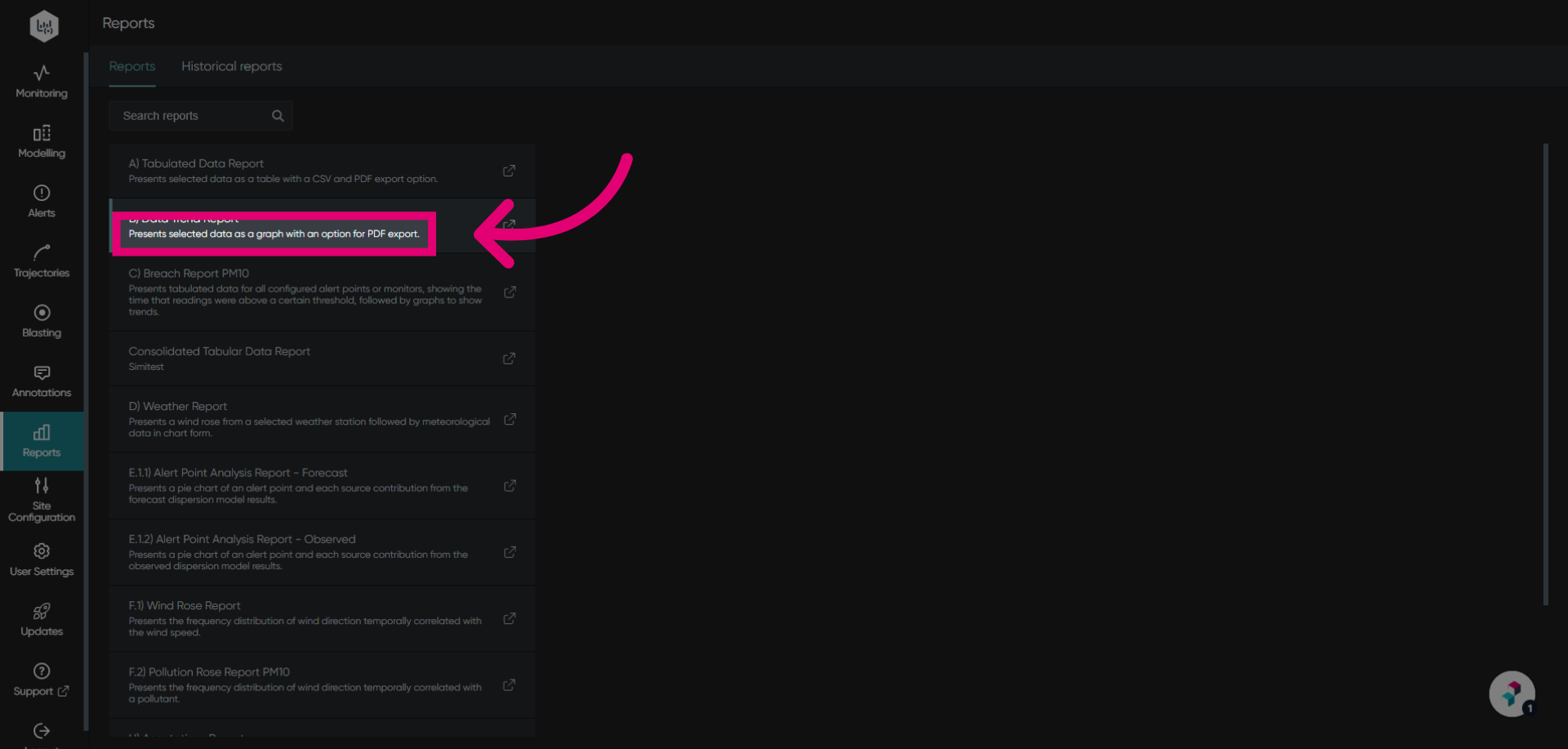
Select Data Trend Report to present data as a graph with an option for PDF export.
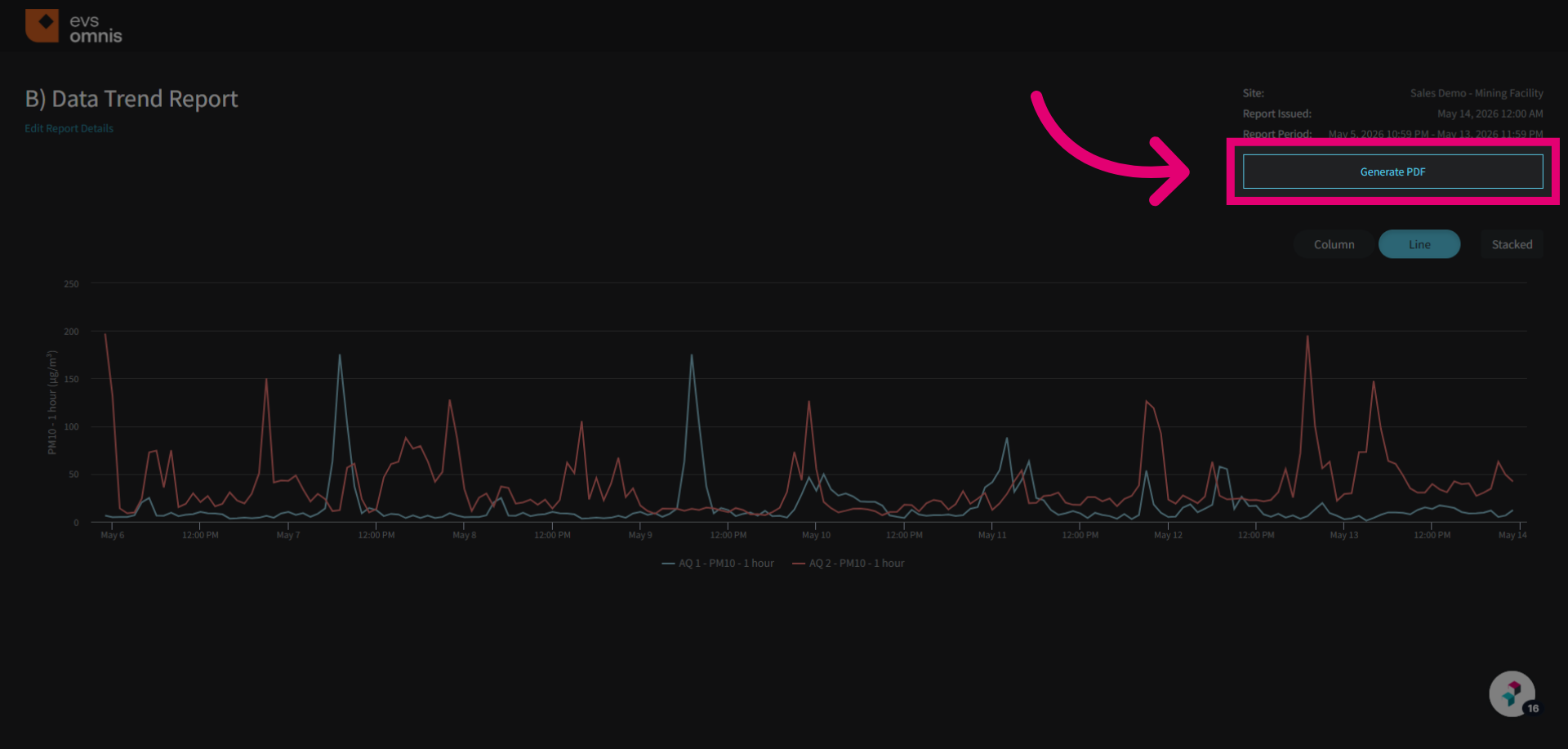
Switch to the new page tab opened to access the data trend report.
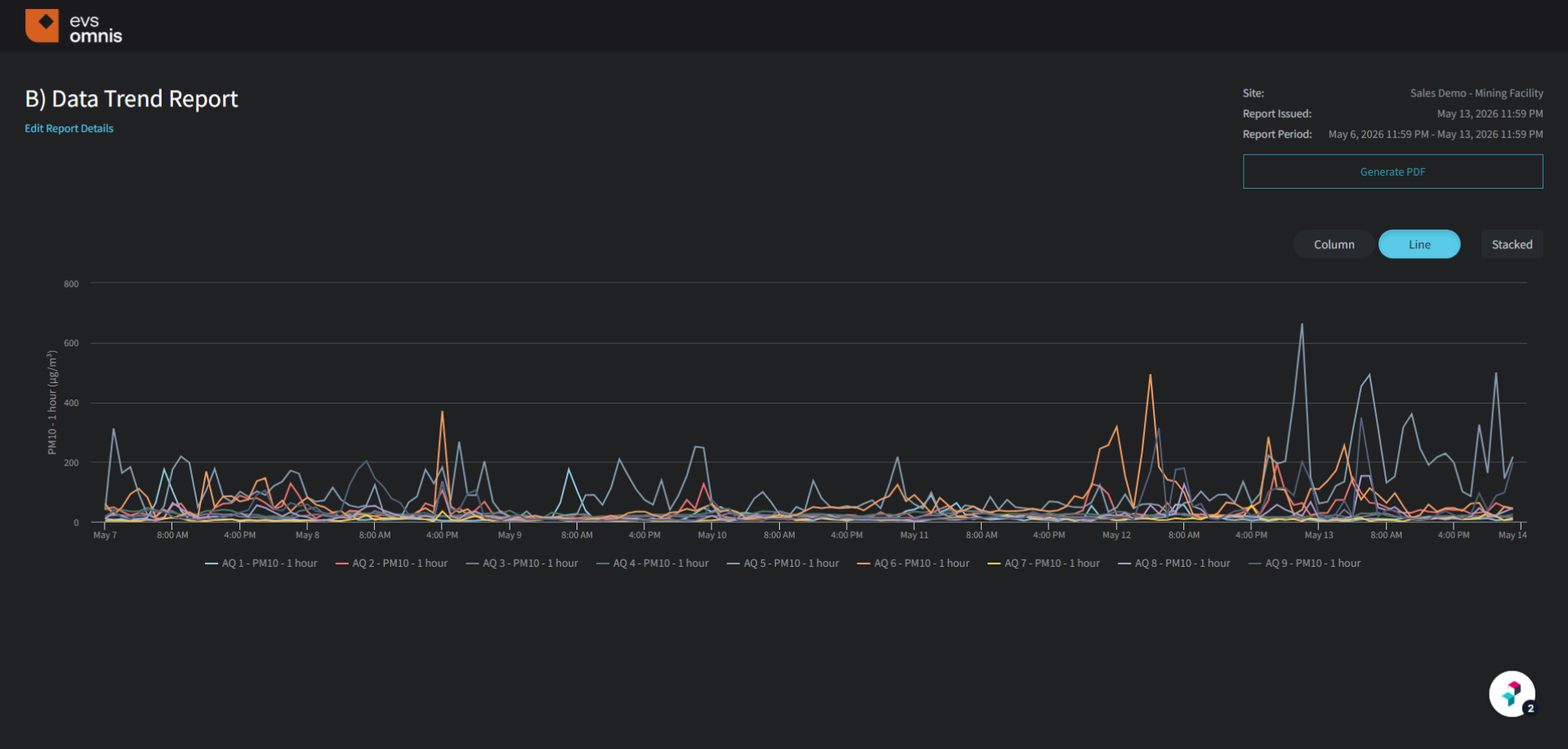
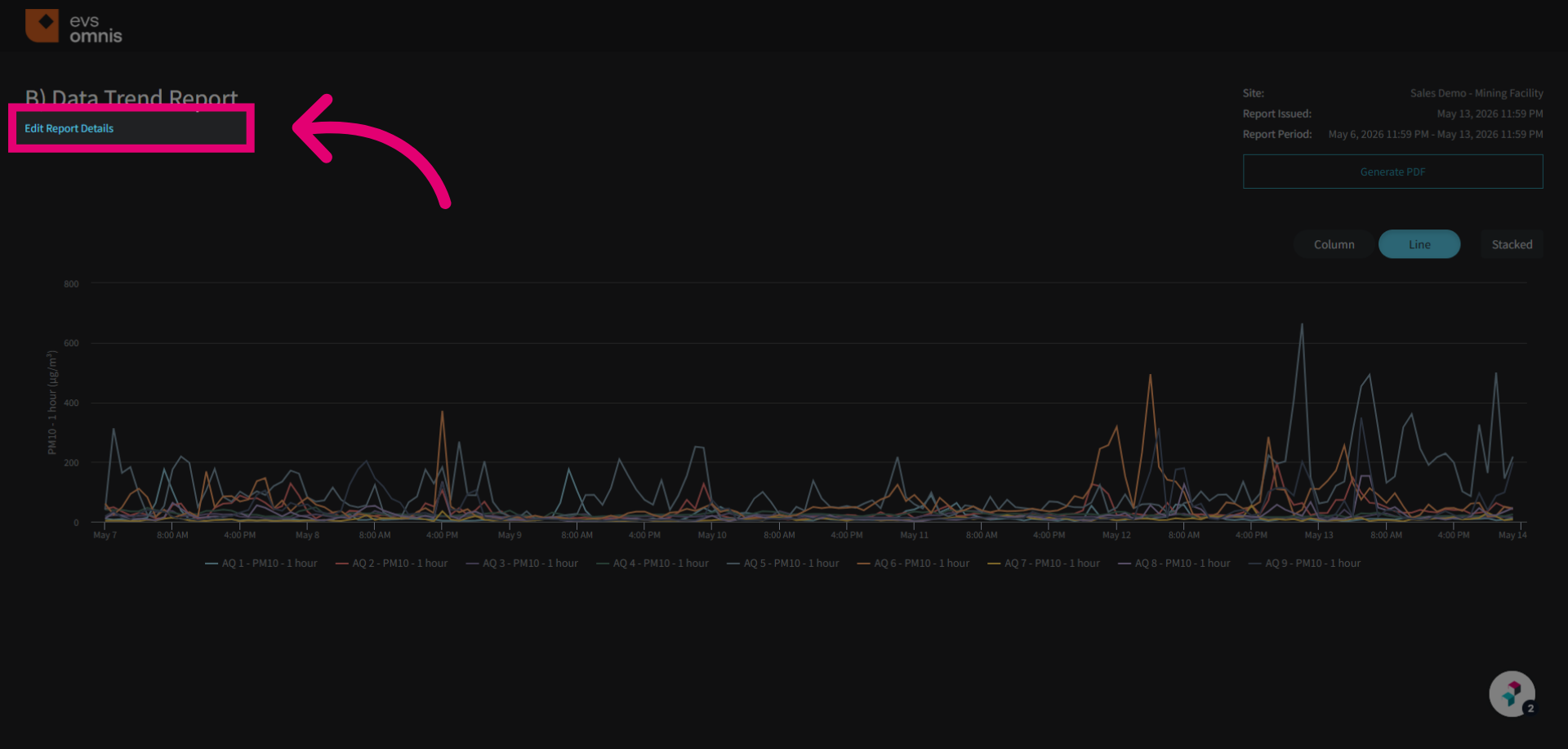
Click Edit Report Details to modify the report's configuration and parameters.
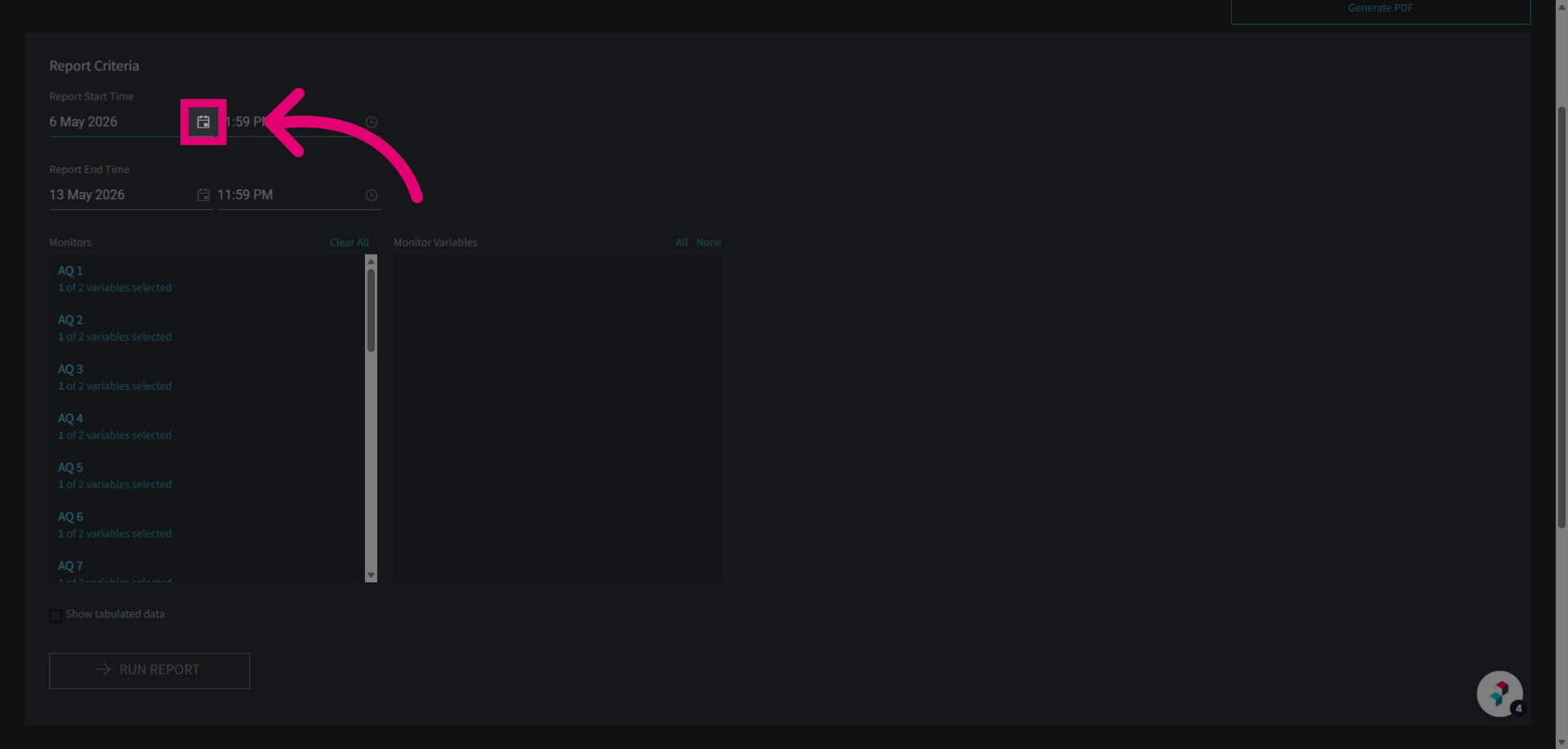
Click on the calendar to open the date selection menu for the report.
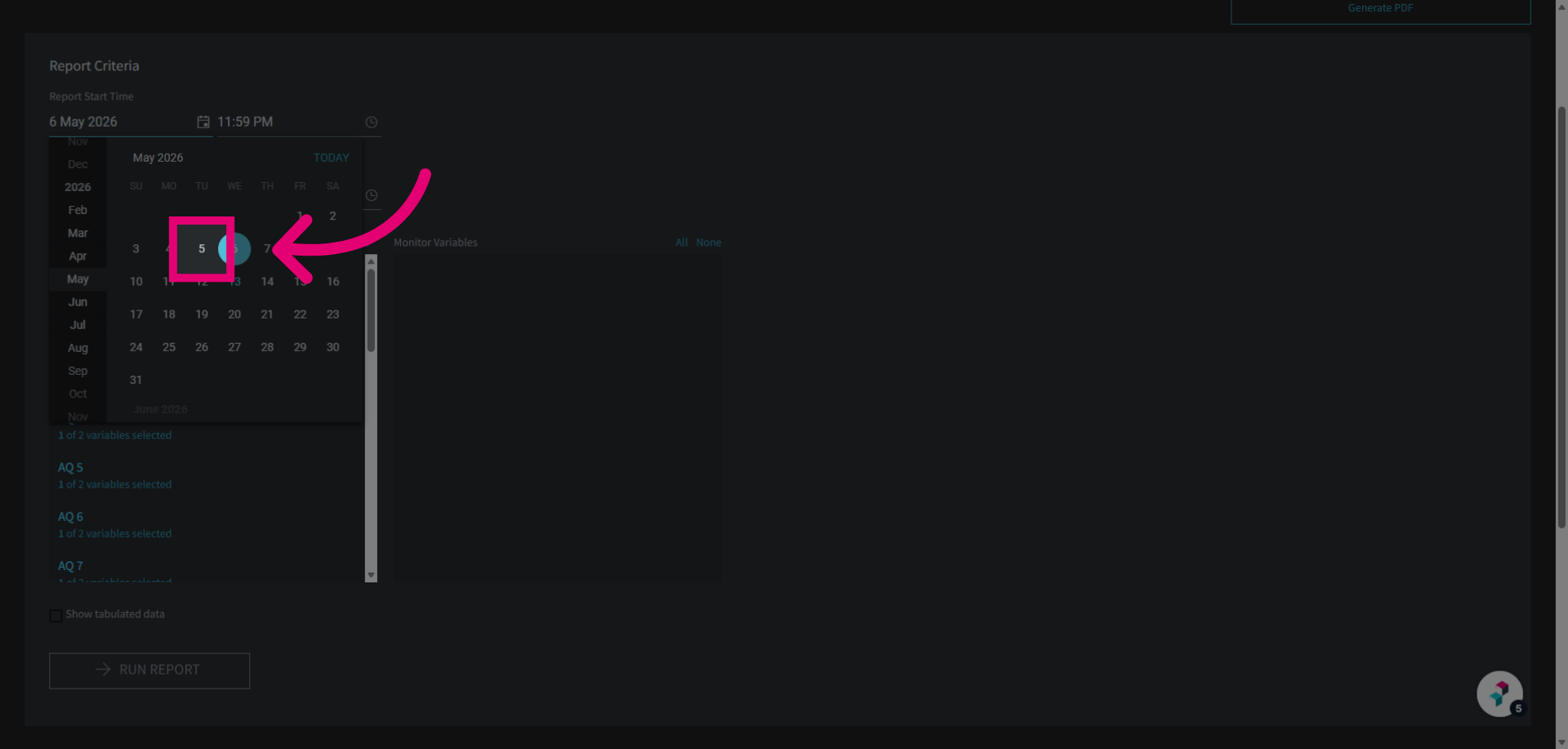
Select the start and end dates for the report's date range.
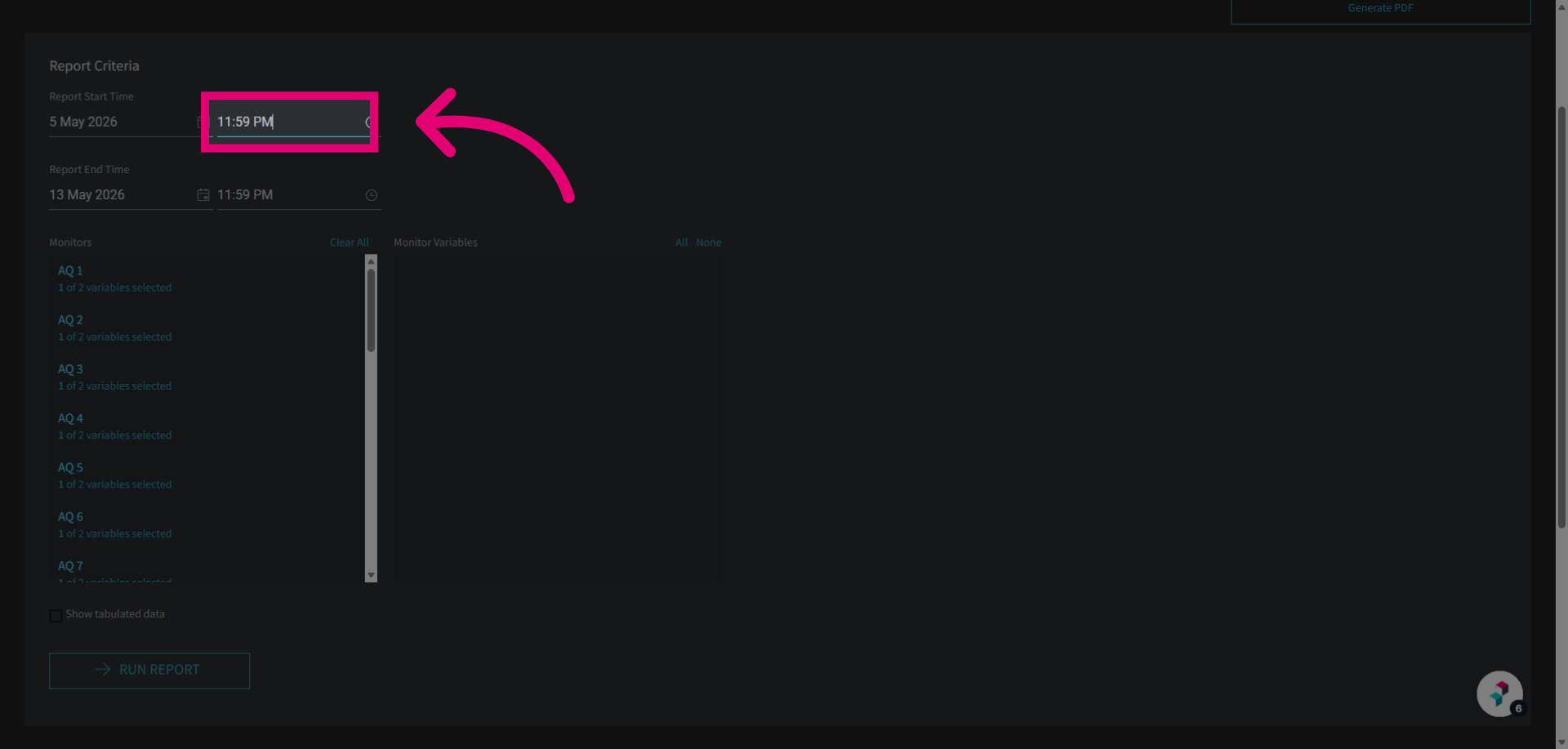
Set the start and end time for the report's data range.
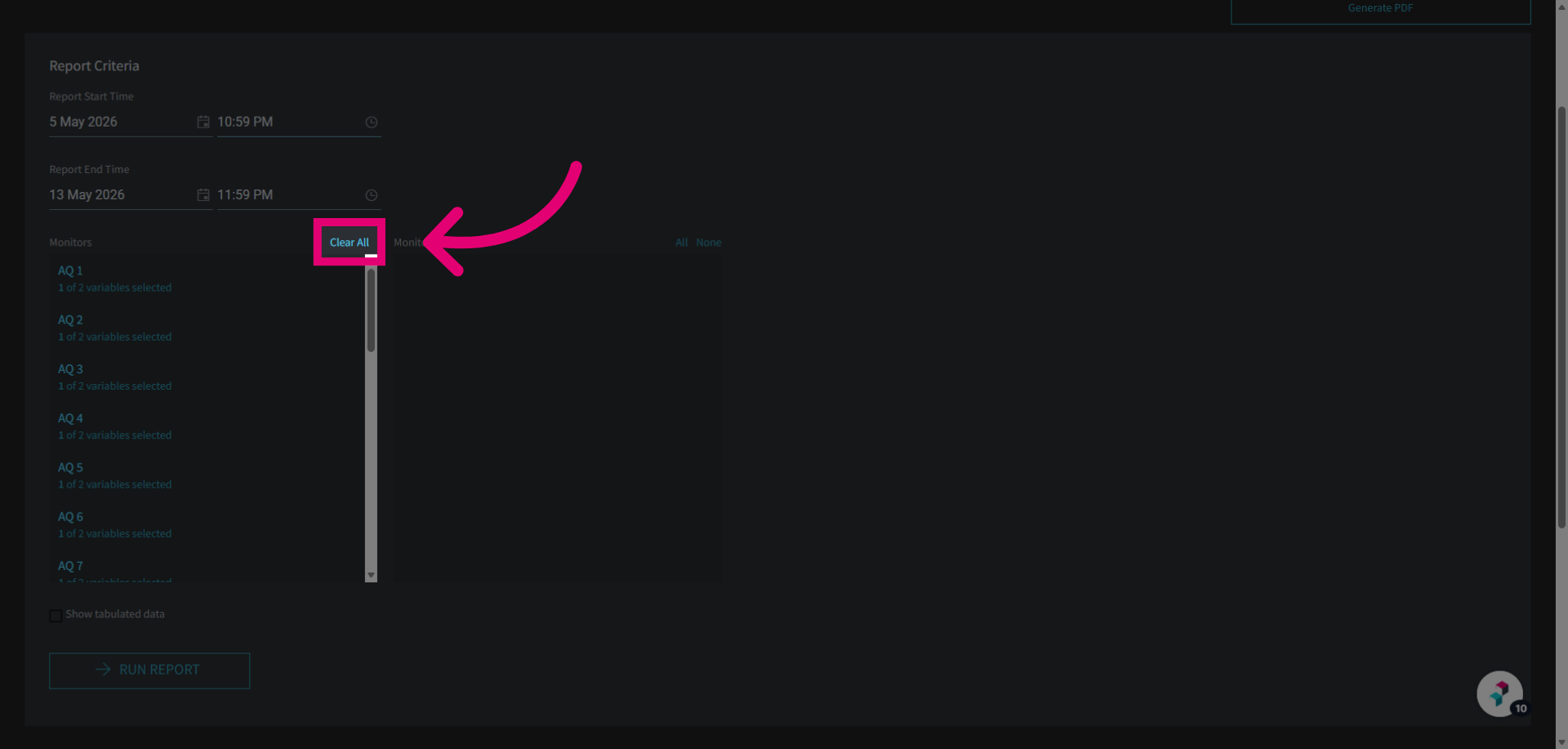
Click Clear All to remove any previously selected report parameters and start fresh.
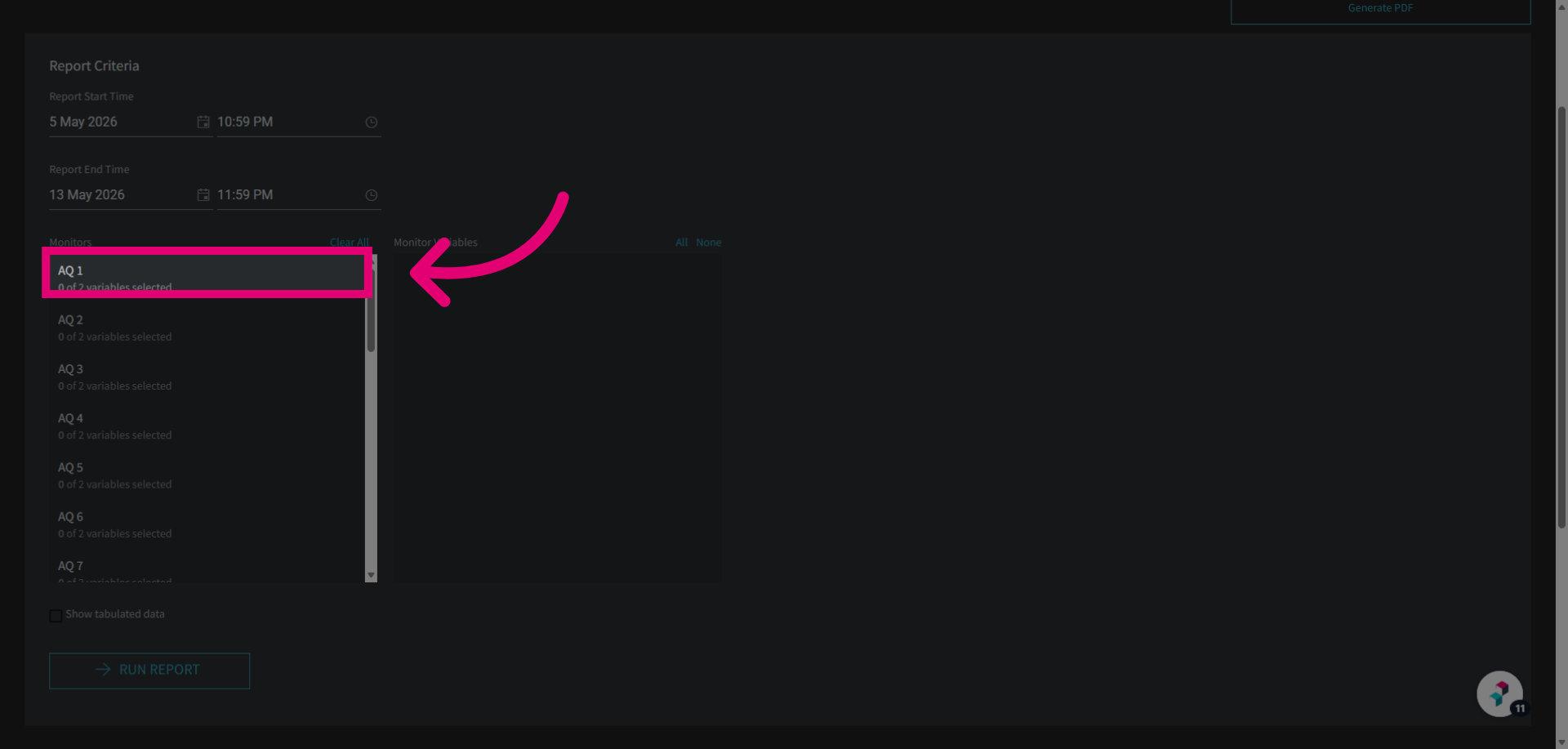
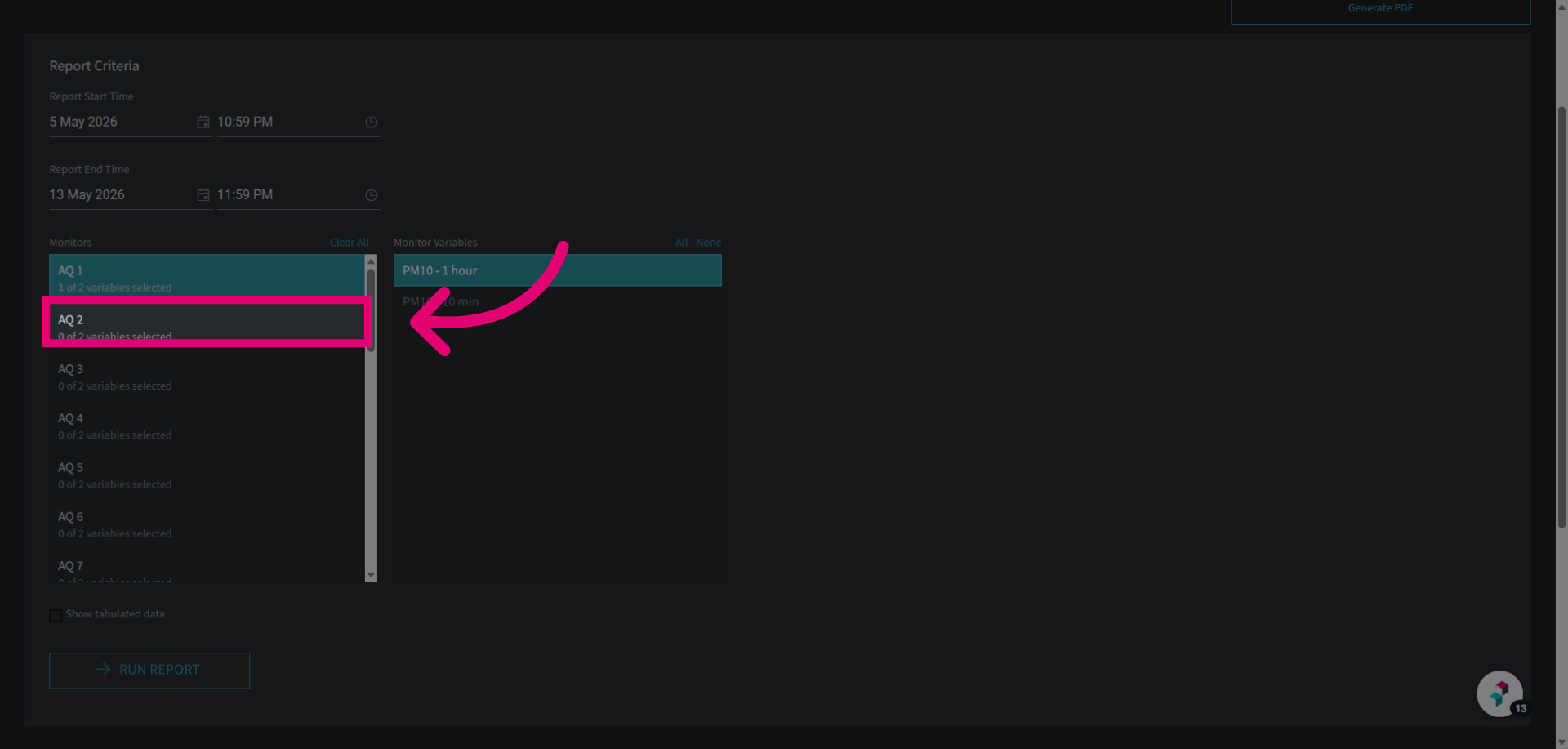
Click a monitor to select the data for inclusion in the report.
Select the desired parameter to be included in the report.
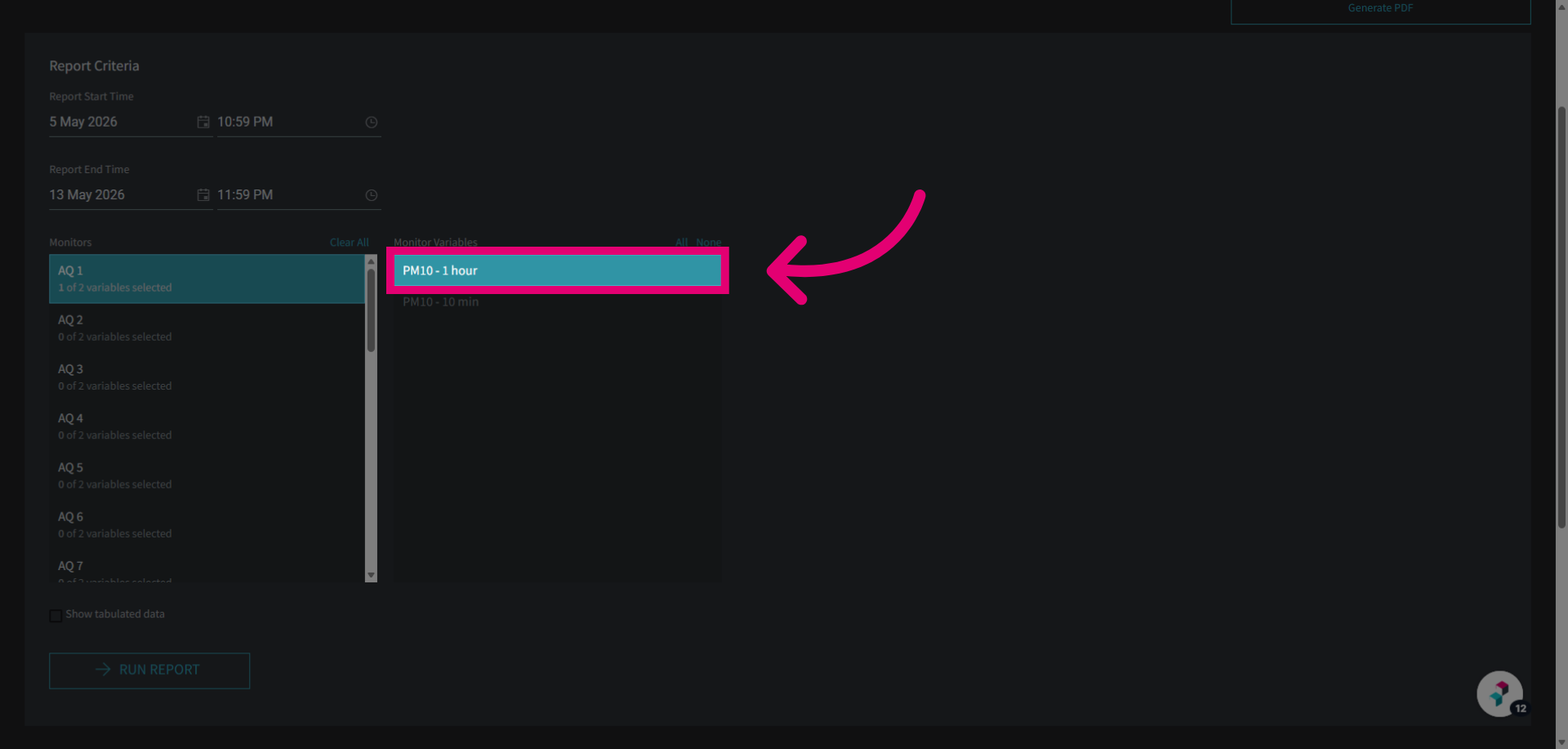
Repeat the process on additional monitors as needed to customize your report.
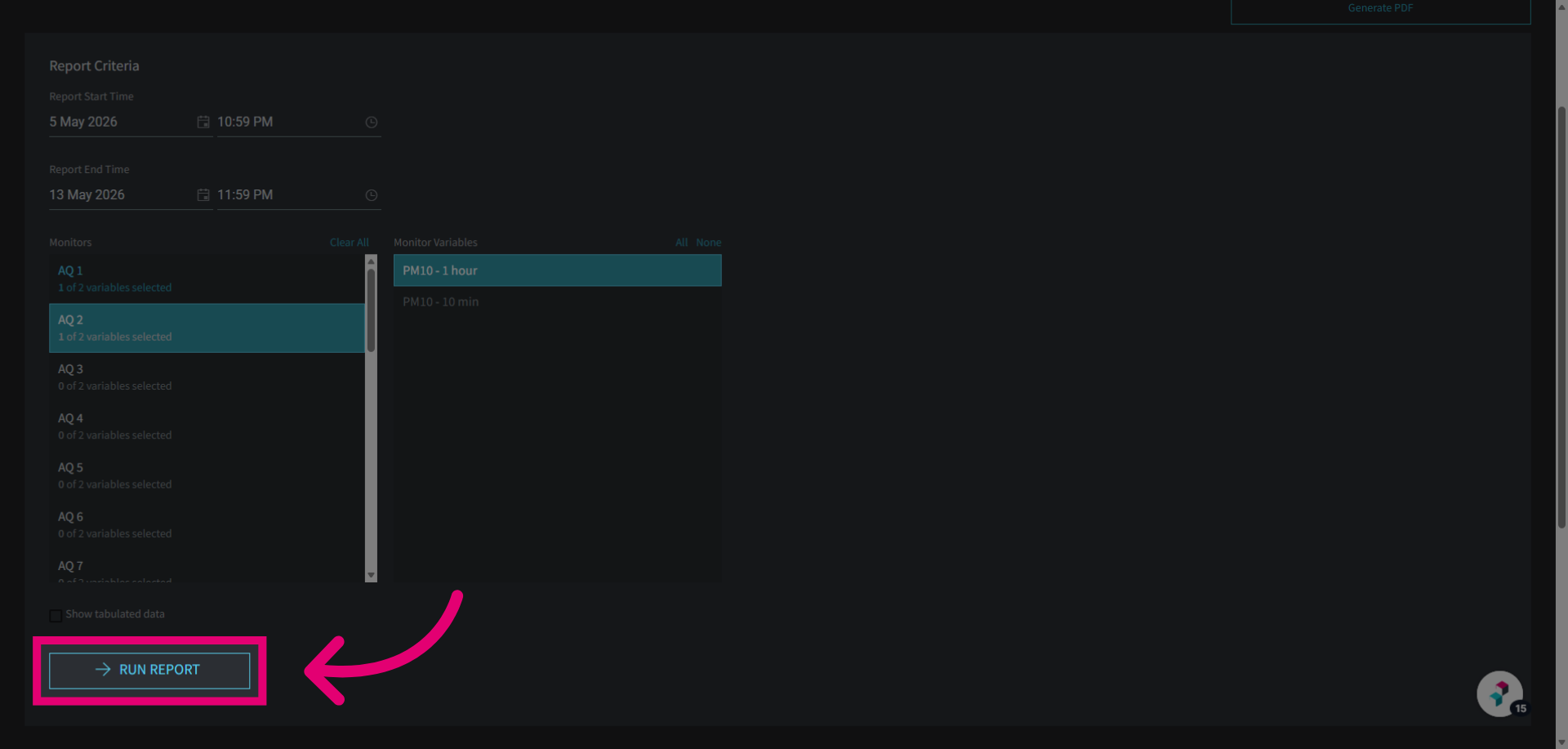
Click Run Report to generate the data trend report with the selected monitors and parameters.
Click Generate PDF to export the generated report as a PDF document for sharing or printing.