New article
Recently updated
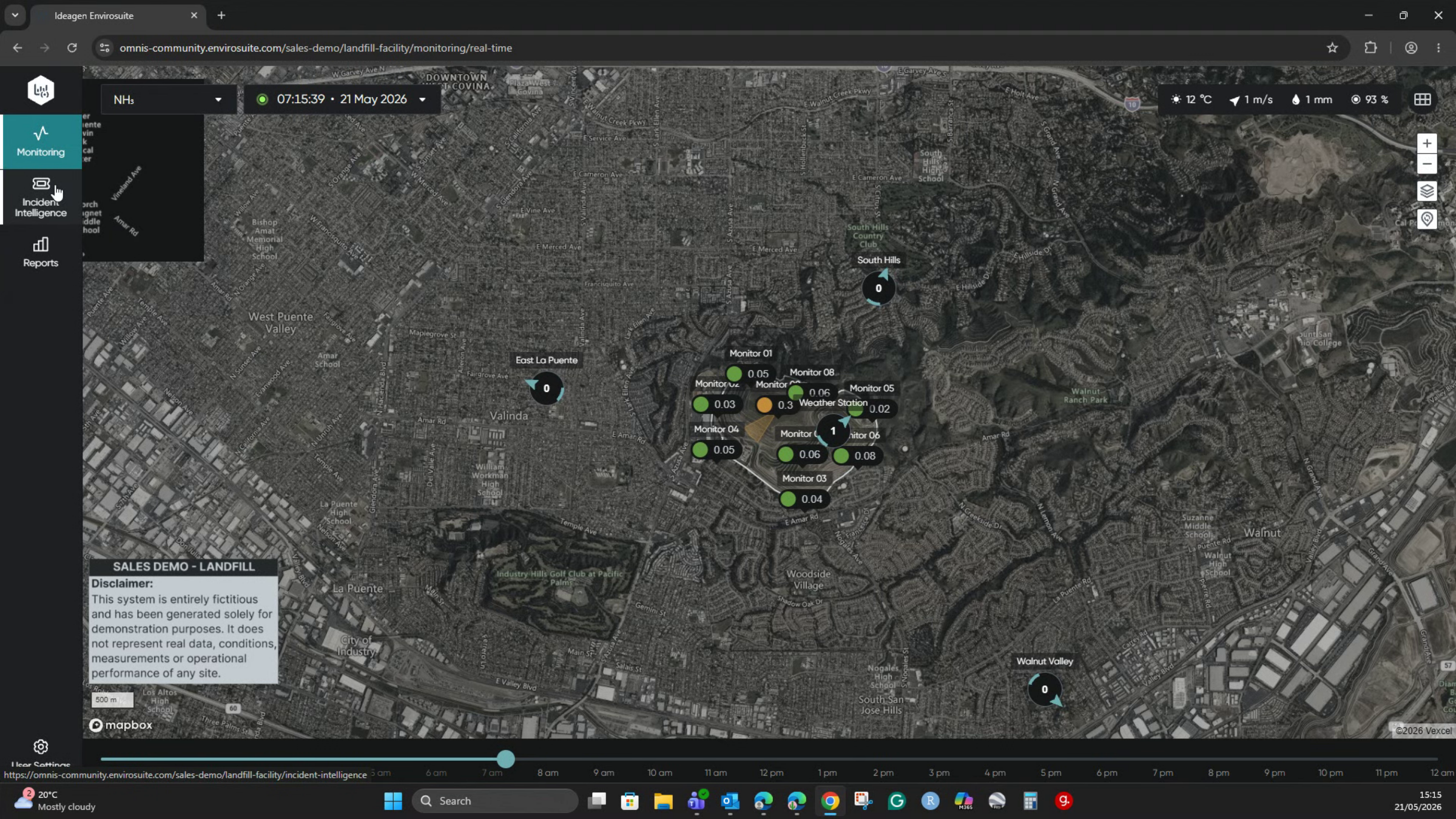
Configuring a public site

Who is this article for?
Administrators managing public sites.
Site Configuration access is required.
Public sites, also known as Community views, are a feature that gives you the opportunity to build trust with the community through transparency. You can choose monitors and reports to make accessible to the general public, demonstrating responsible operations to your community.
The public site can be accessed from any browser and shared with any community member who can view it without needing login credentials.
This article walks you through setting up a public site through the platform resources groups.
Configuring a public site
To configure a public site:
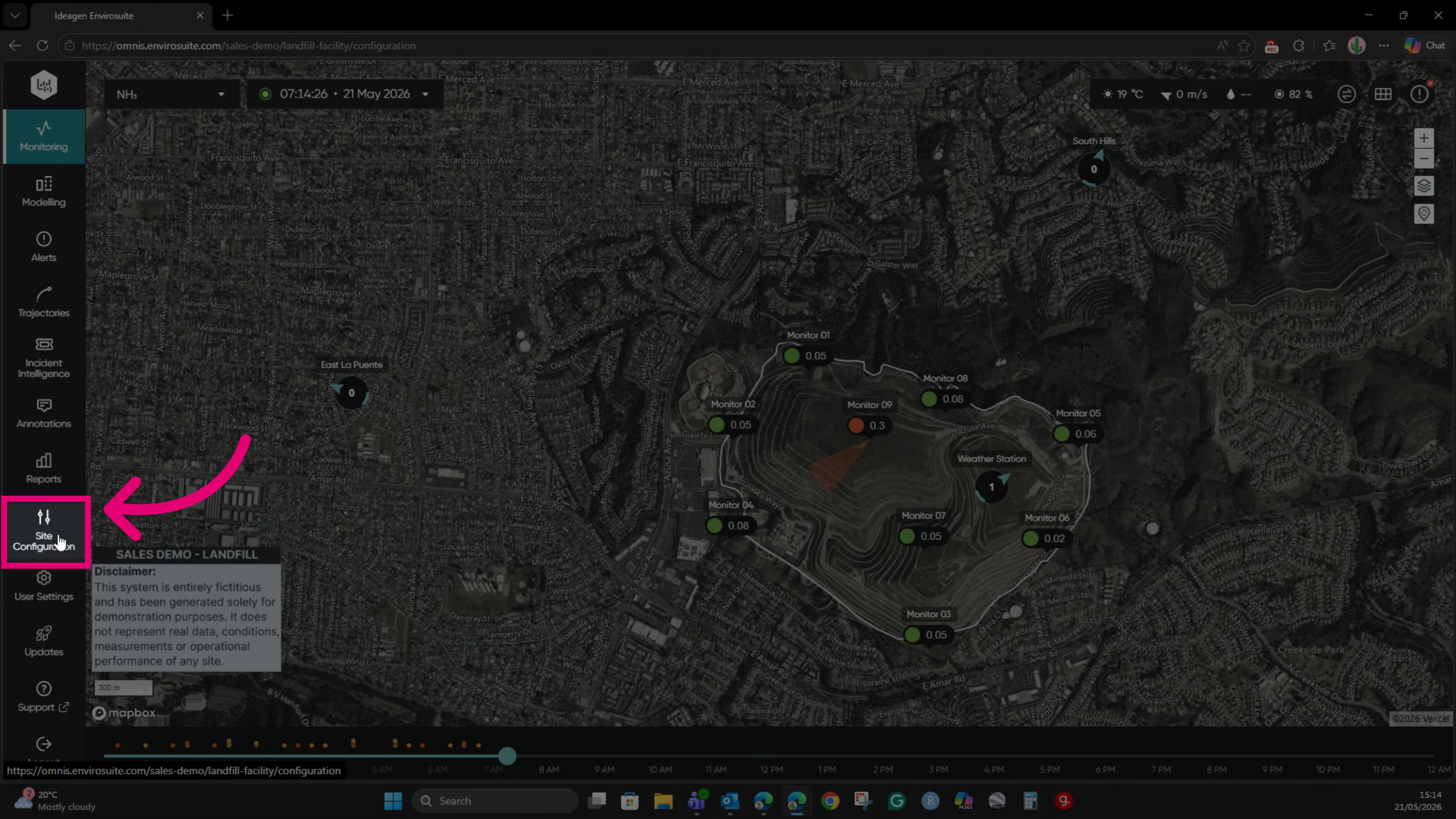
- Go to Site Configuration.
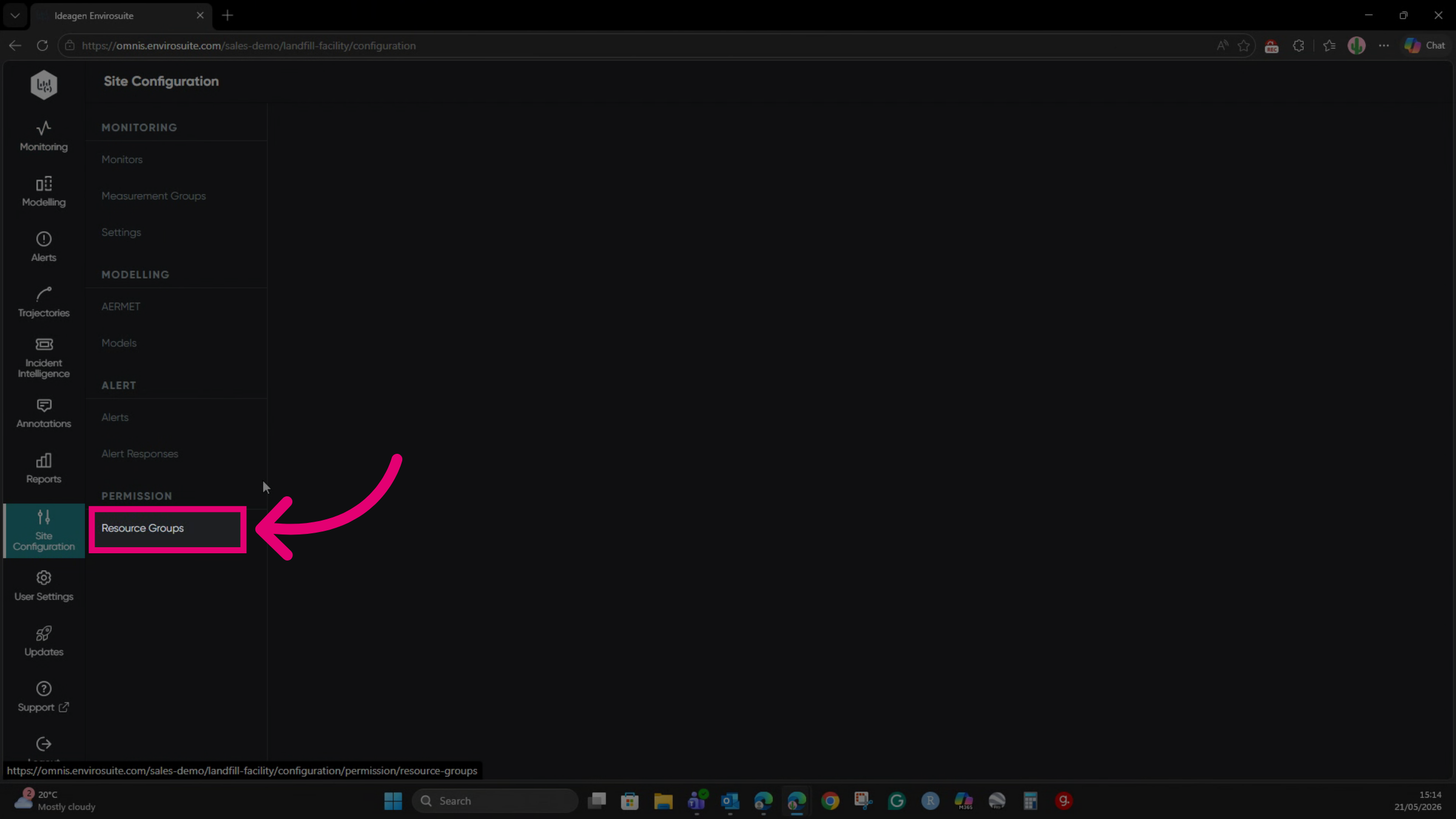
- Select Resource Groups.
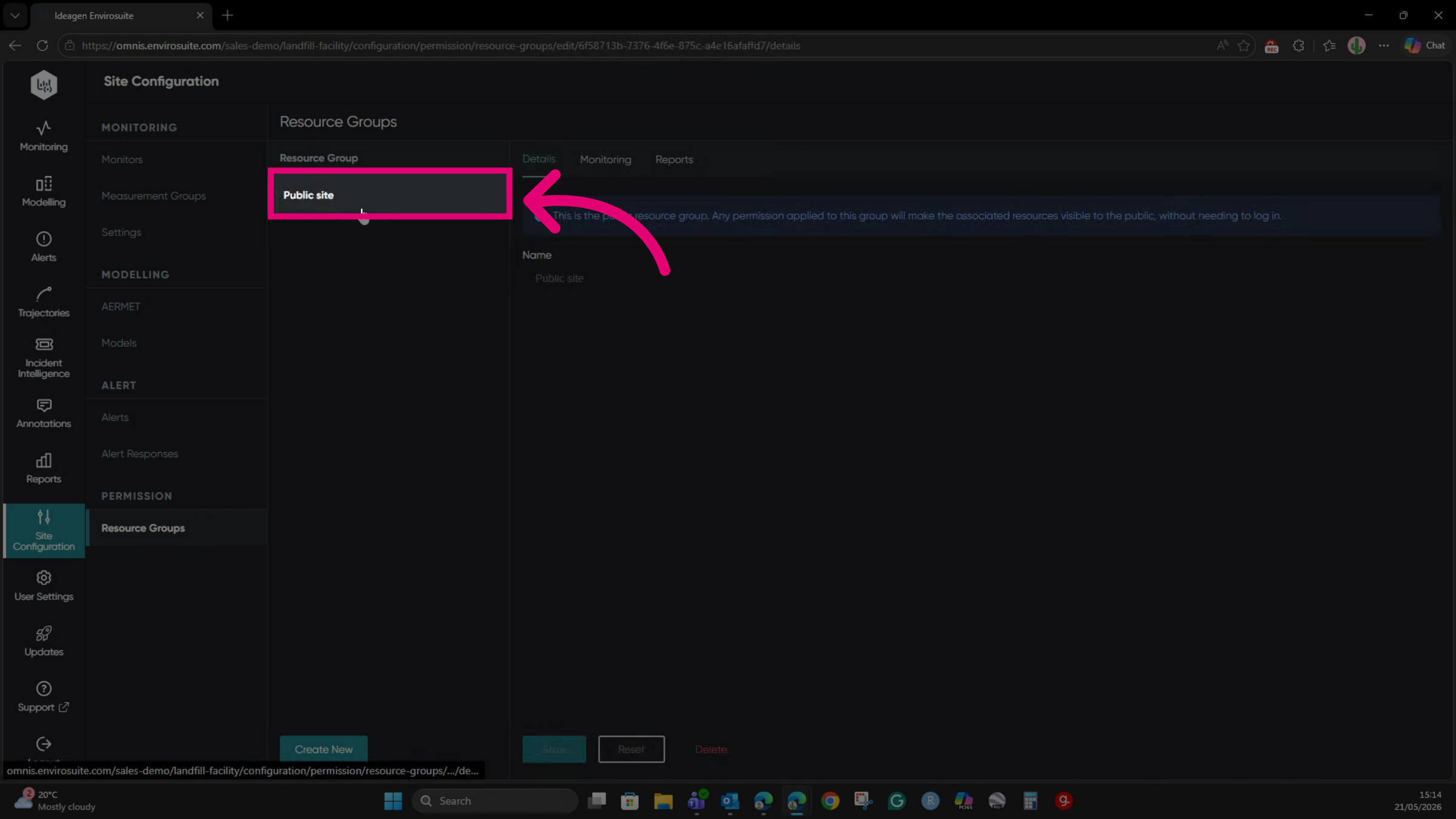
- Select Public site to display details.
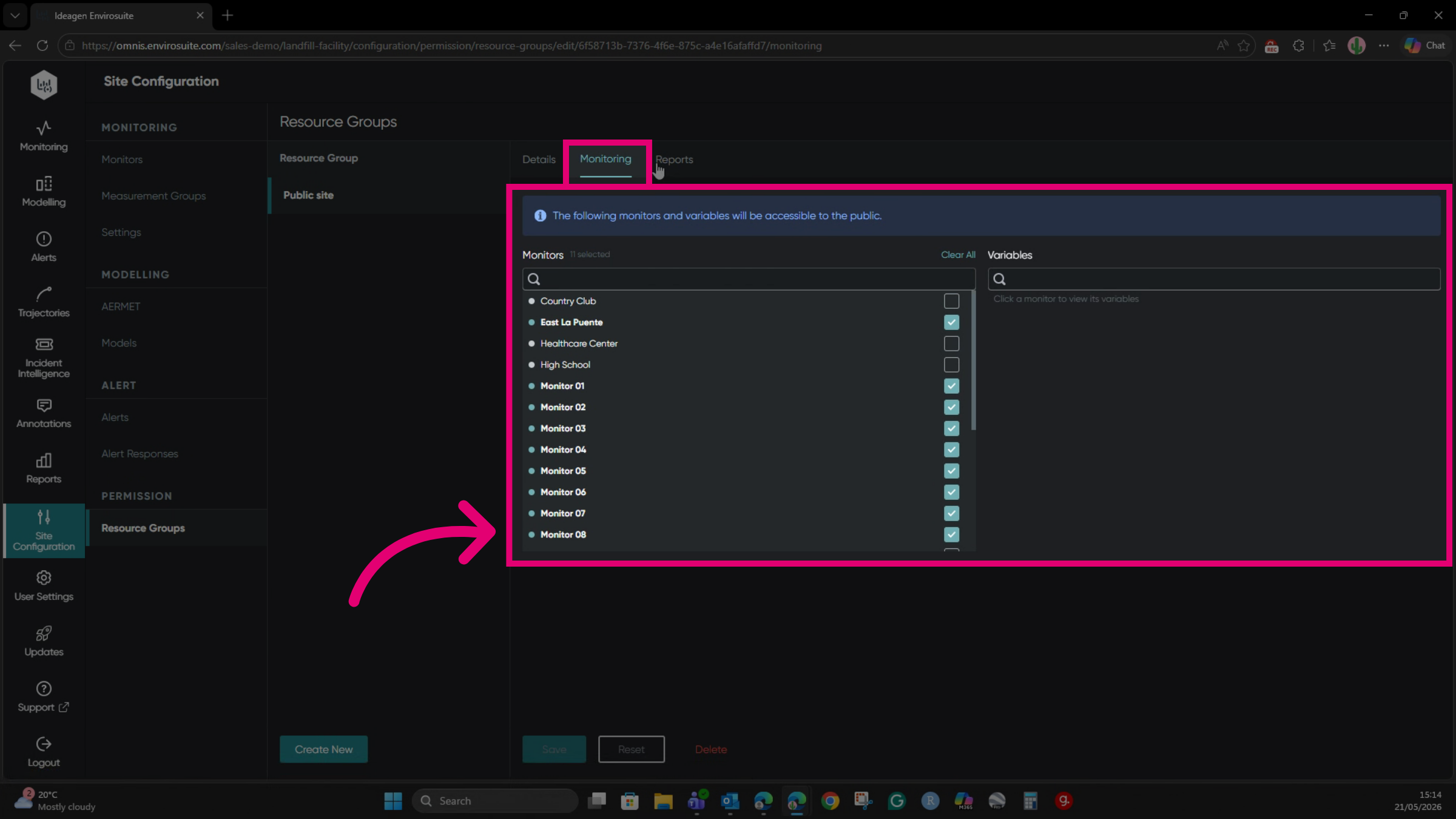
- Tick the Monitors you want to make public.
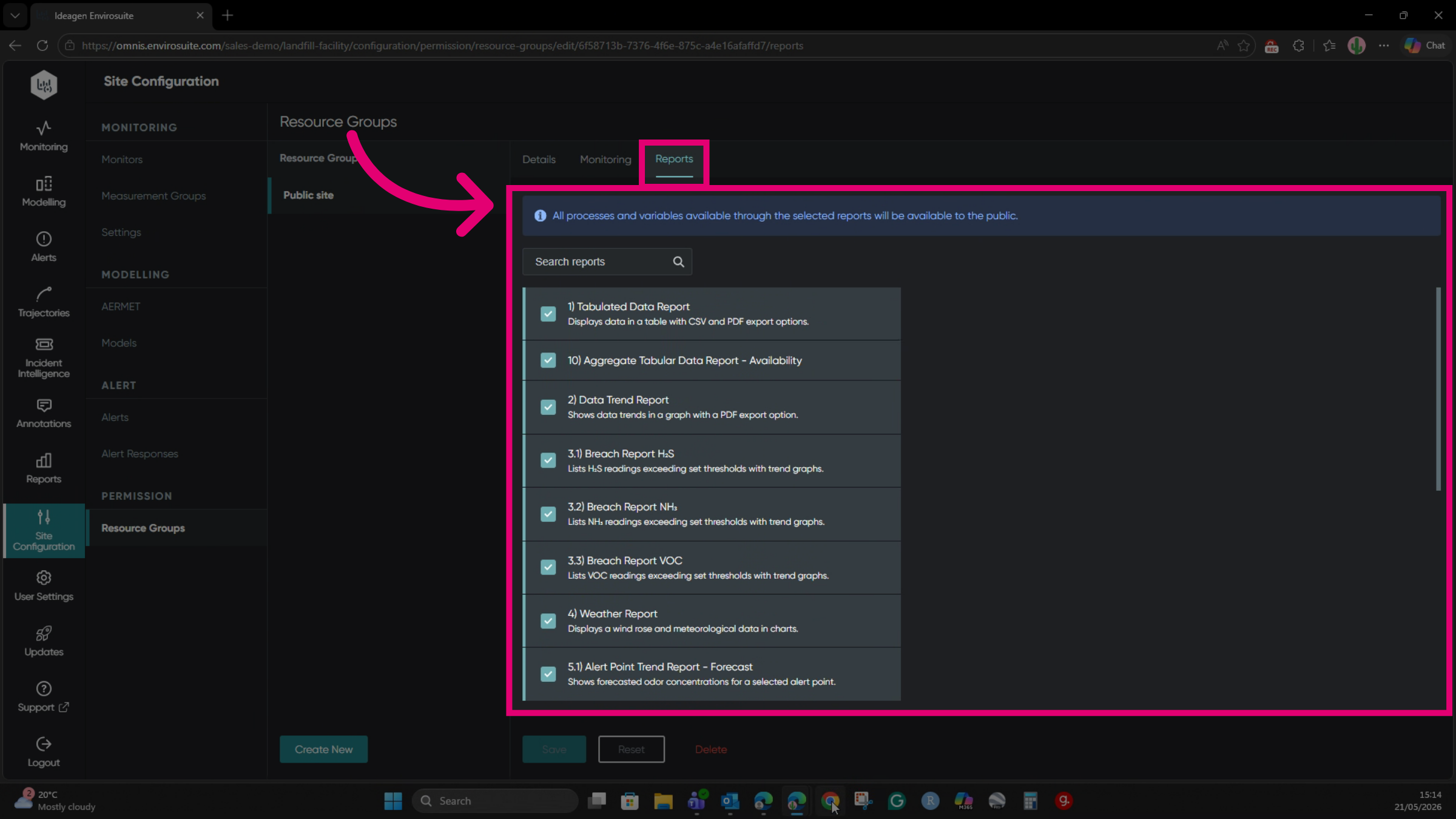
- Tick the Reports you want to make public.
- Click Save.
You can view the site as a public user by going to the URL while browsing privately.
This public site has been configured to display the monitoring, incident intelligence, and reports modules, unlike the customer's site with access to all subscription features.