New article
Recently updated
Creating a backward trajectory

Who is this article for?
Users wanting to create a backward trajectory.
All users can perform this task.
This tutorial guides you through creating a backward trajectory in Ideagen Envirosuite.
You will learn how to configure and generate a backward trajectory to track wind origin or direction during incidents involving odours or emissions.
Creating a backward trajectory
Log into the system.
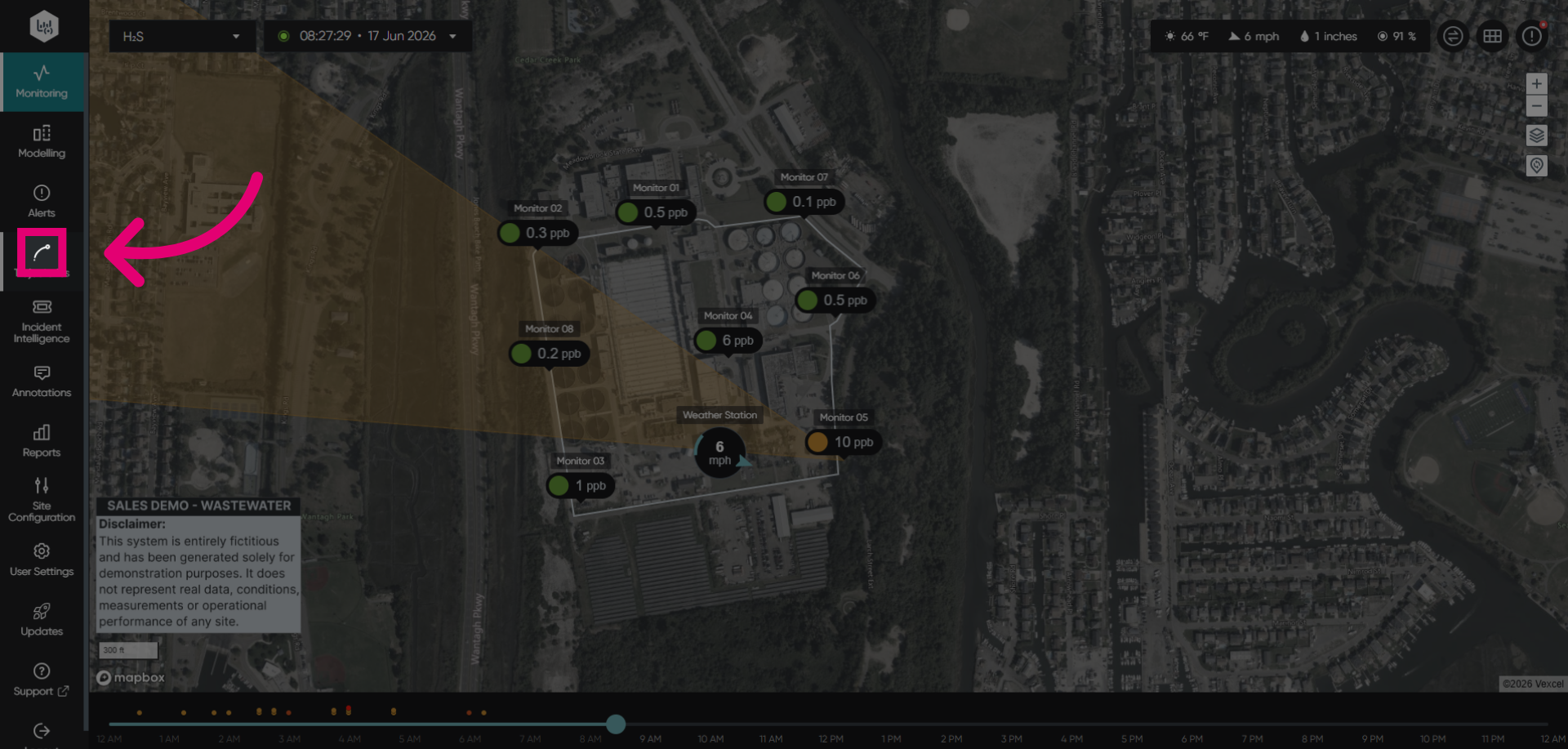
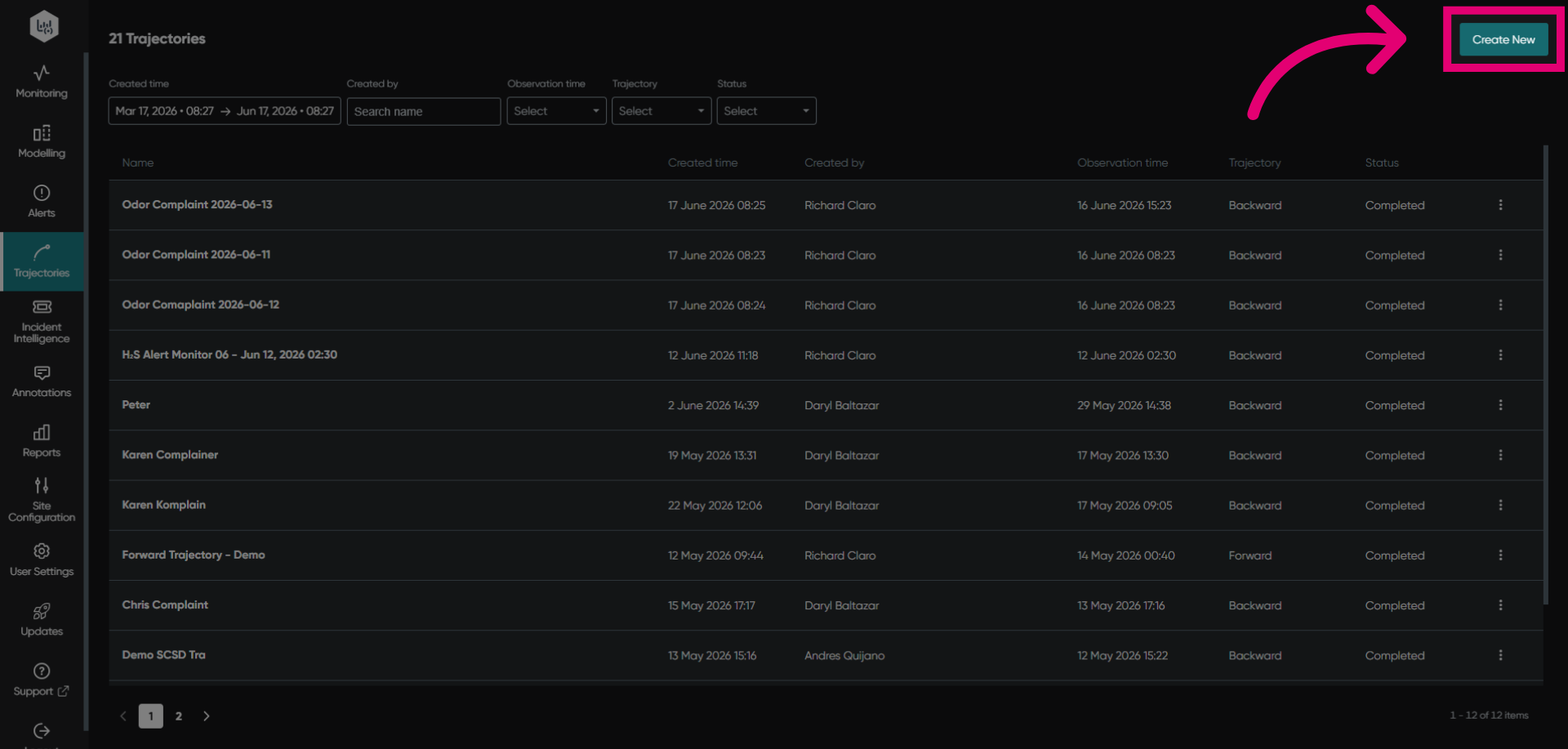
Click Create New to begin creating a new backward trajectory entry.
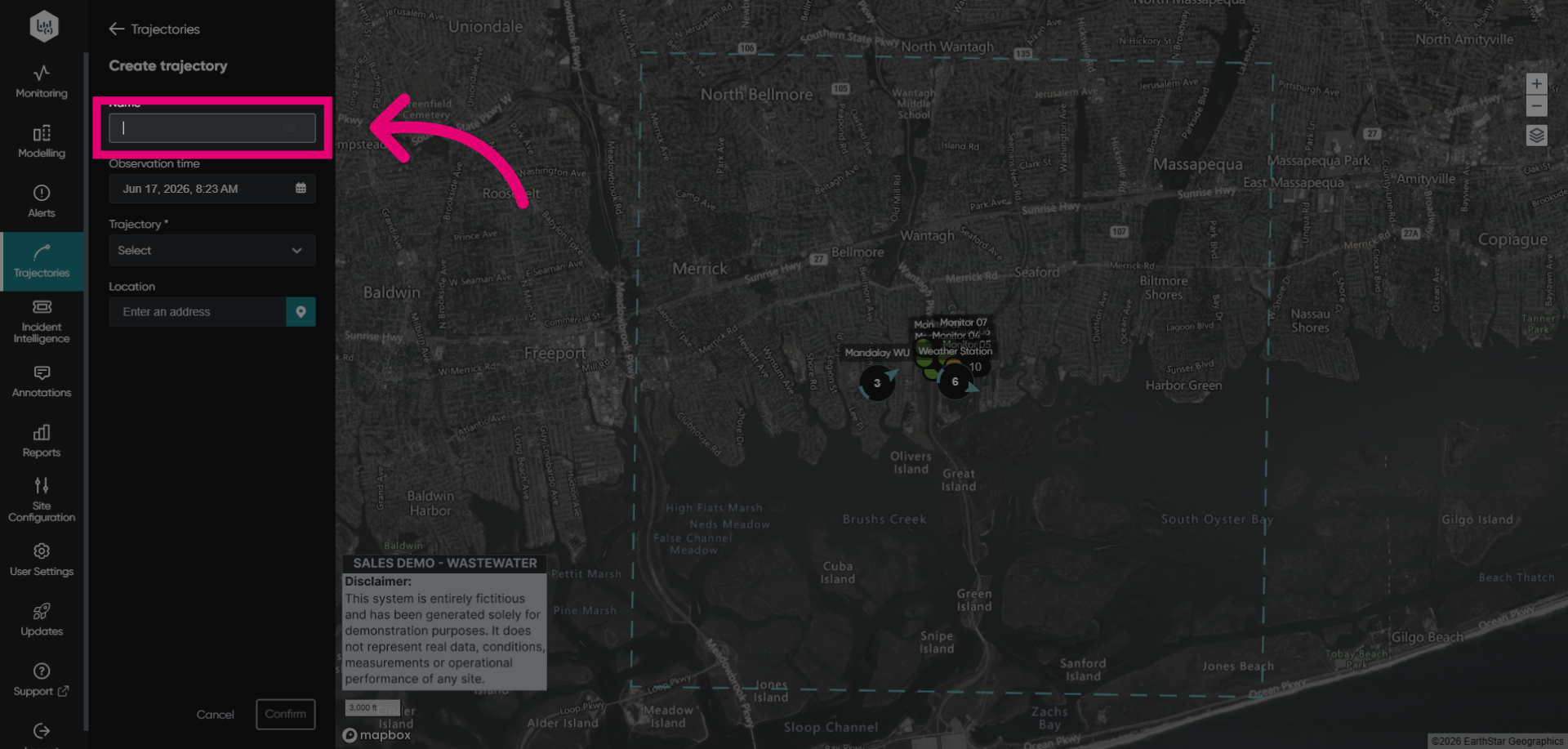
Click the Name field to specify the identifier for your trajectory.
Click the calendar icon to open the date picker for setting the observation time.
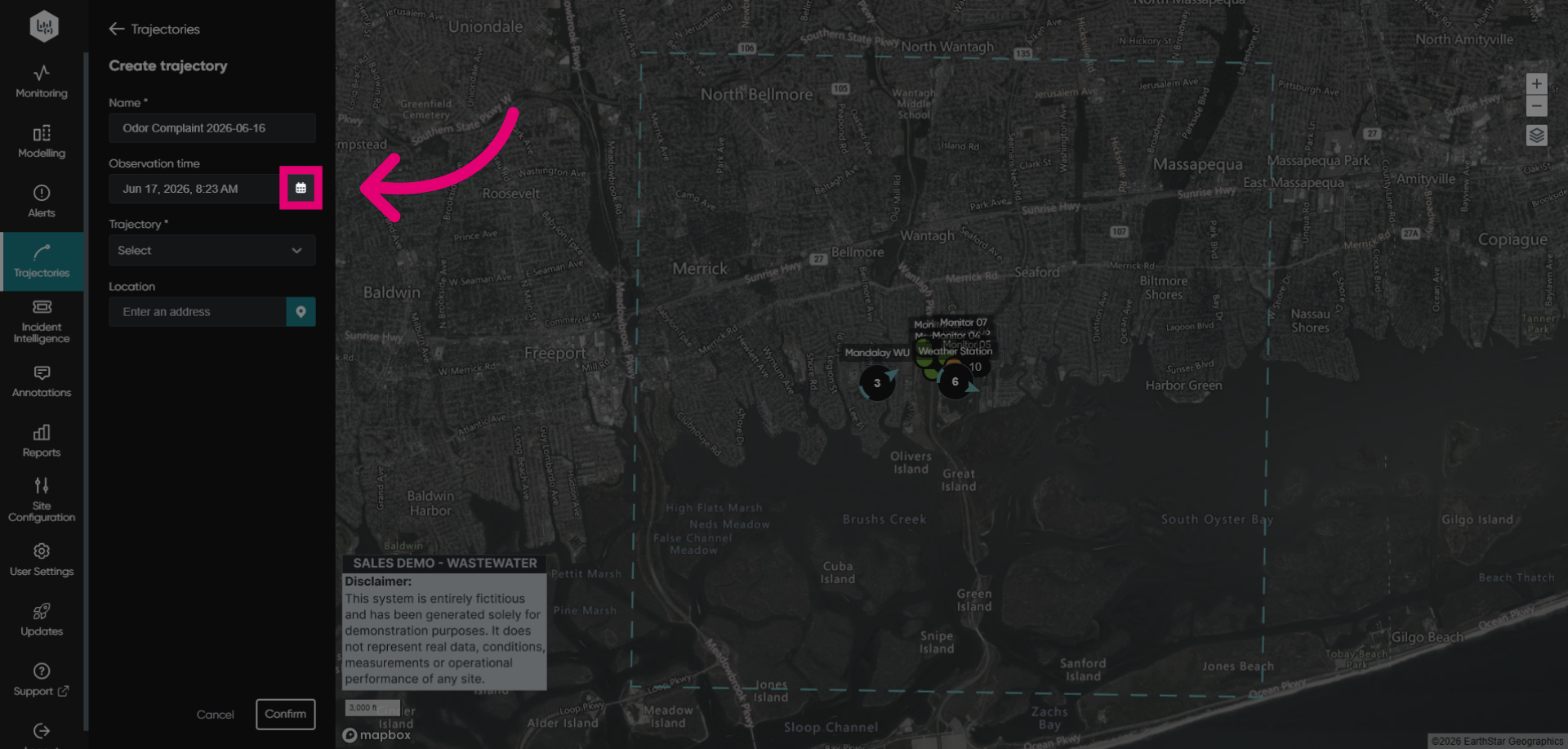
Select the date and time of the desired analysis period.
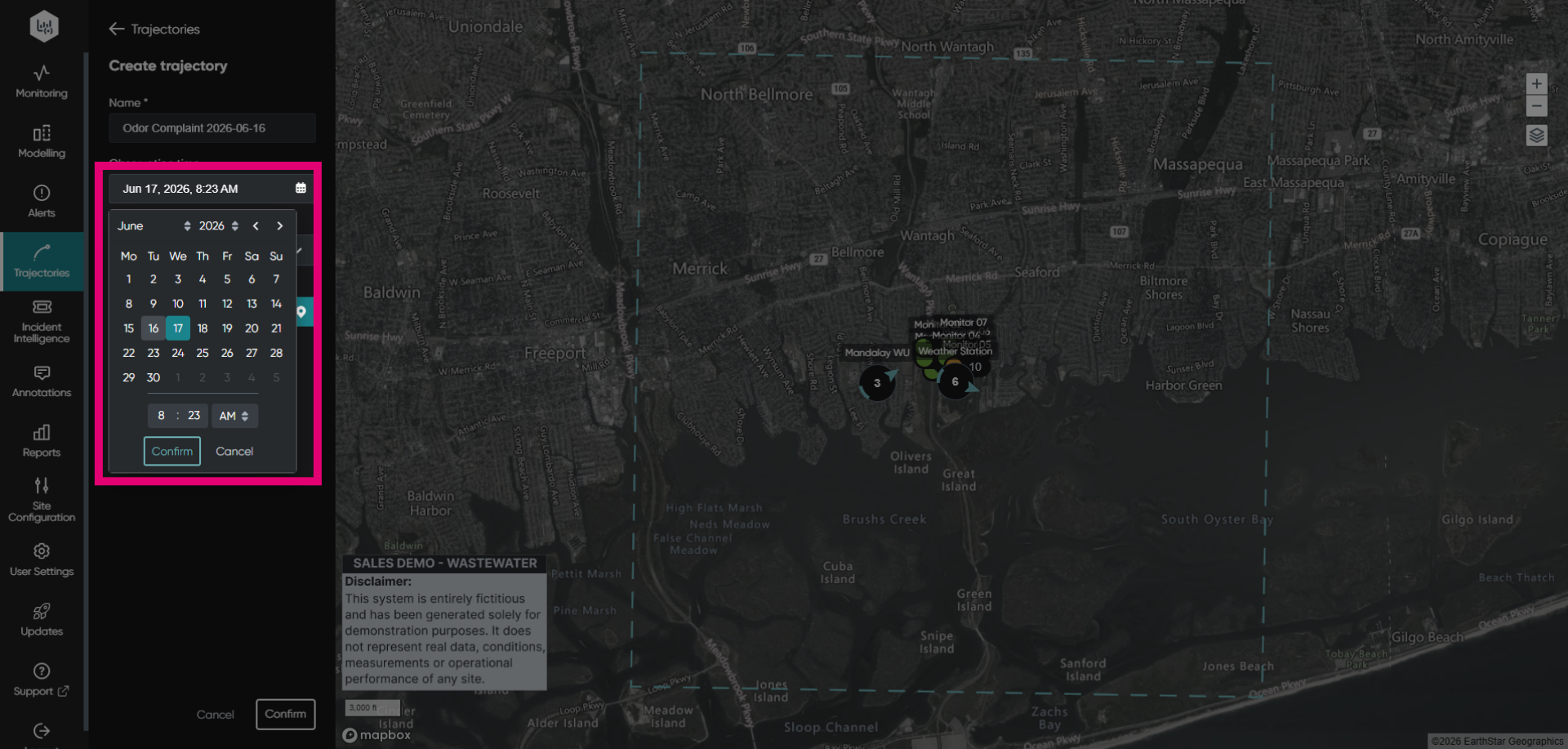
Click Confirm to save the selected date and time for the backward trajectory.
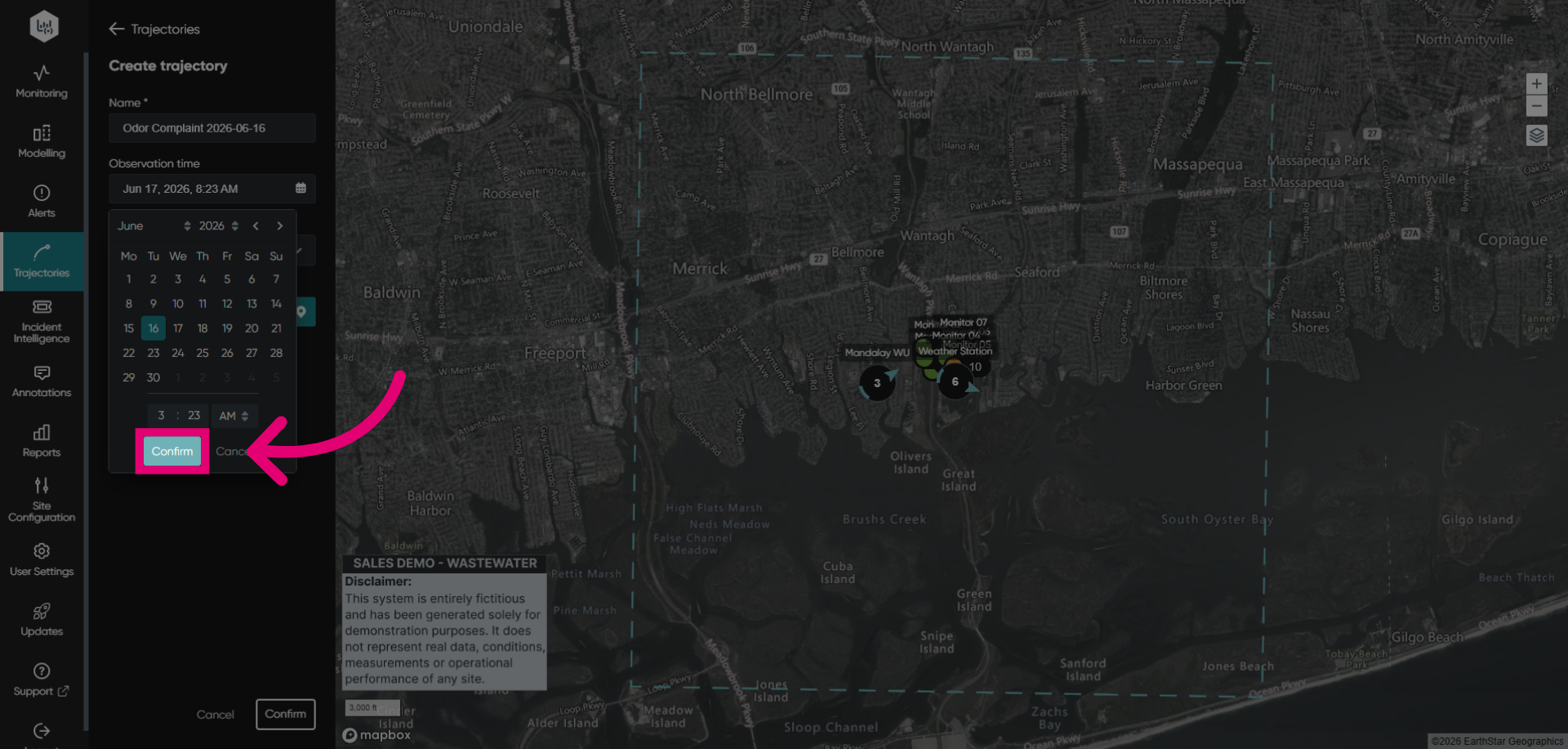
In the case of an investigation, such as an odor or dust nuisance observation, select the Backward trajectory option from the dropdown.
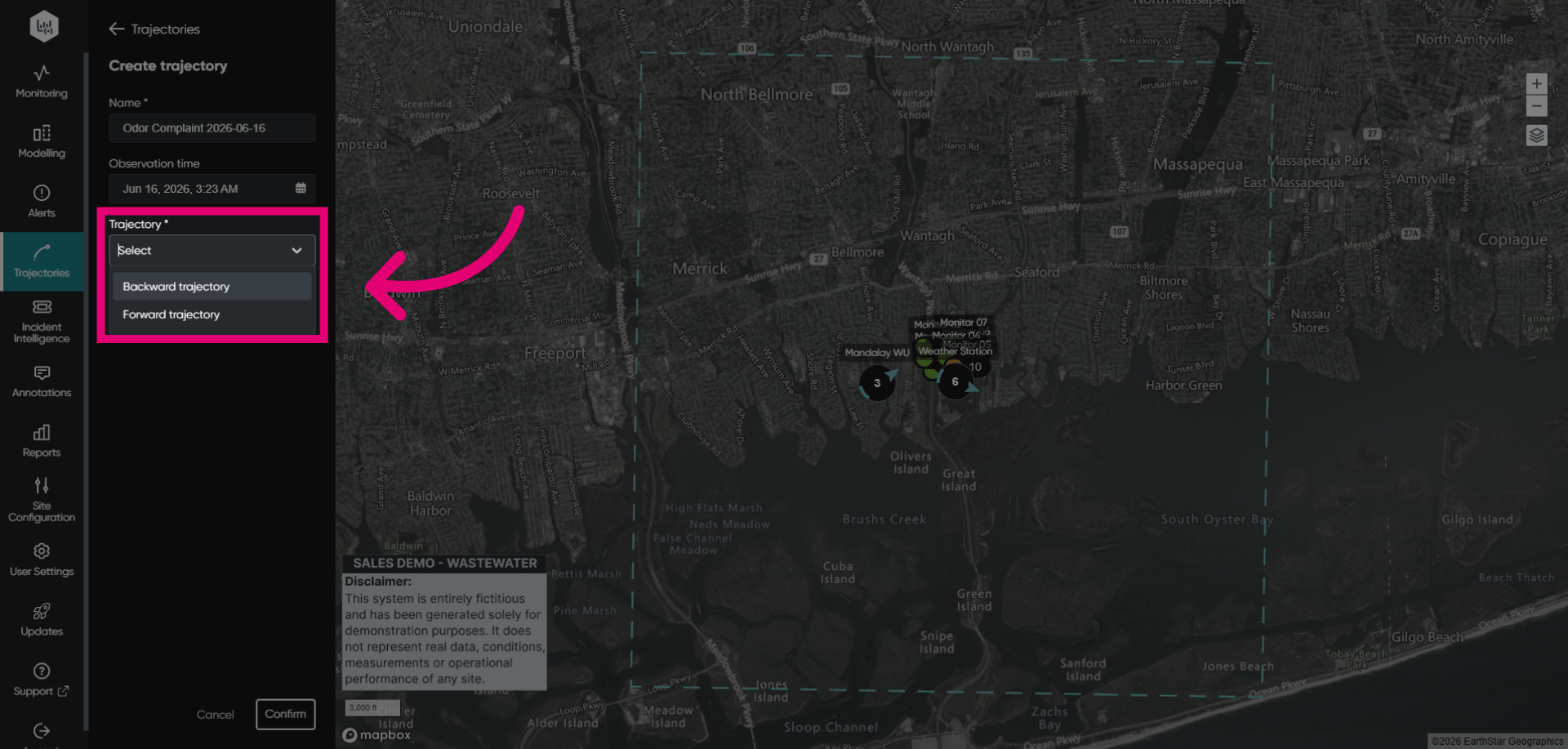
Set the location of the start of the forward trajectory. Use the address lookup feature if the address is known. Alternatively, click the pin icon to drop a pin on the map for the location.
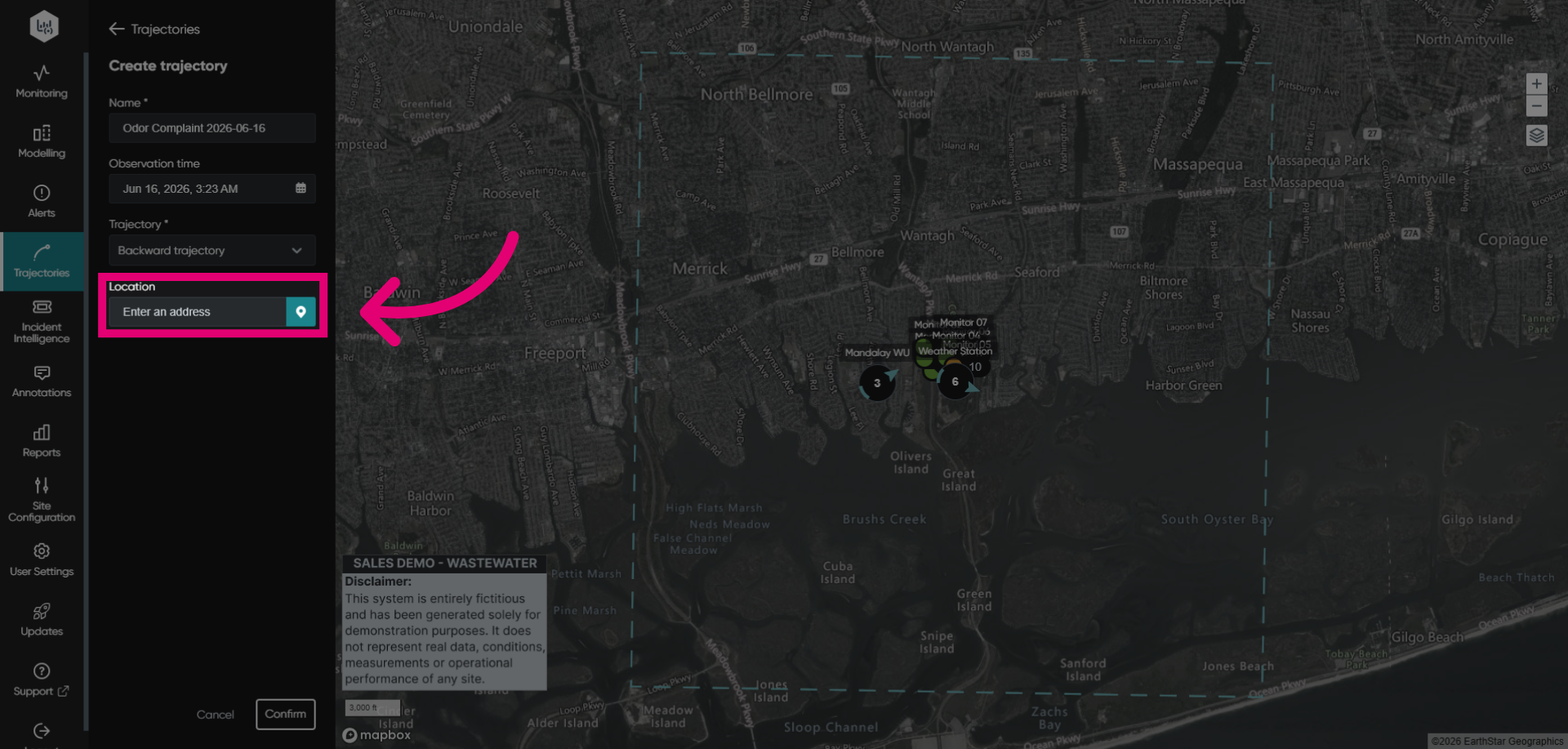
Click Confirm to finalize the backward trajectory configuration.
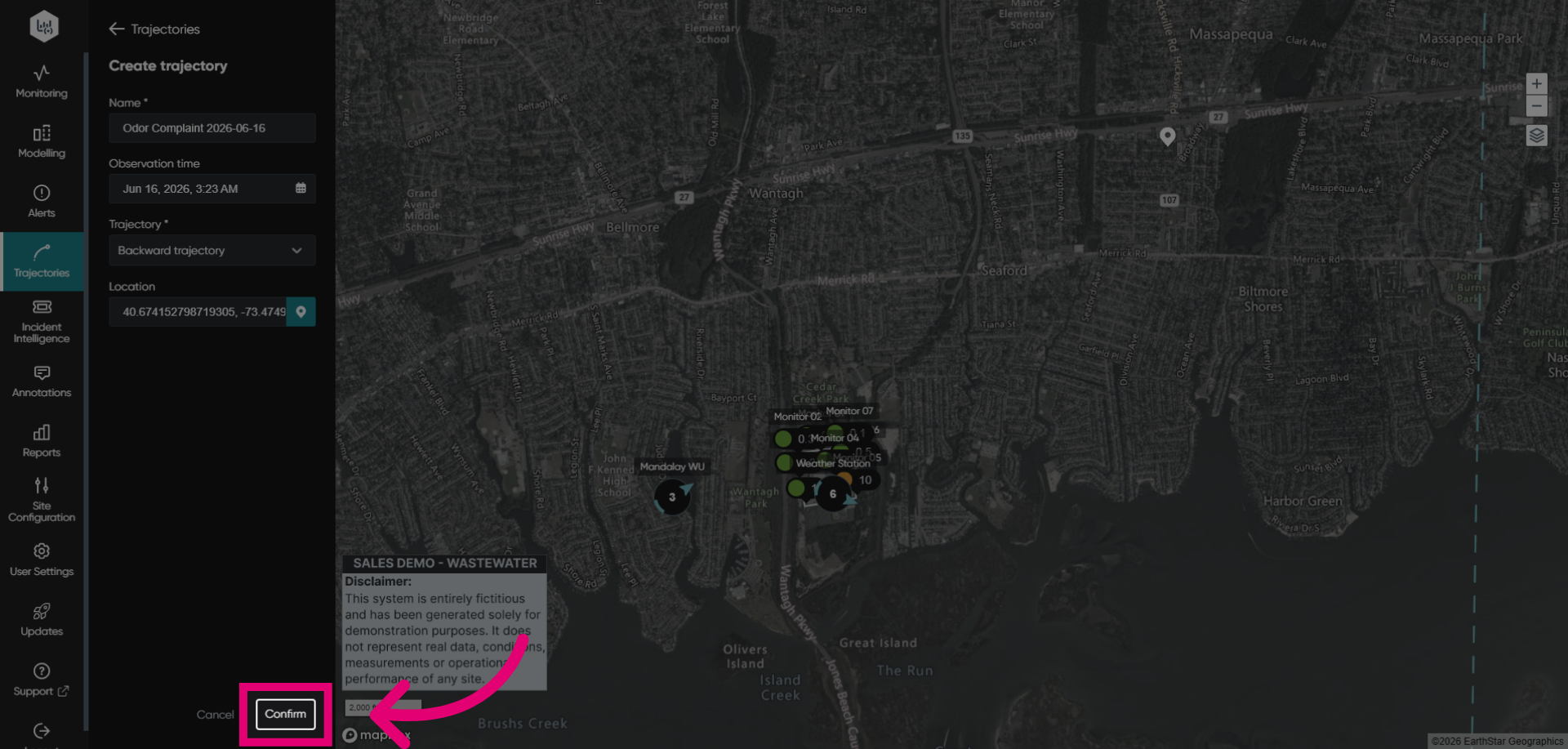
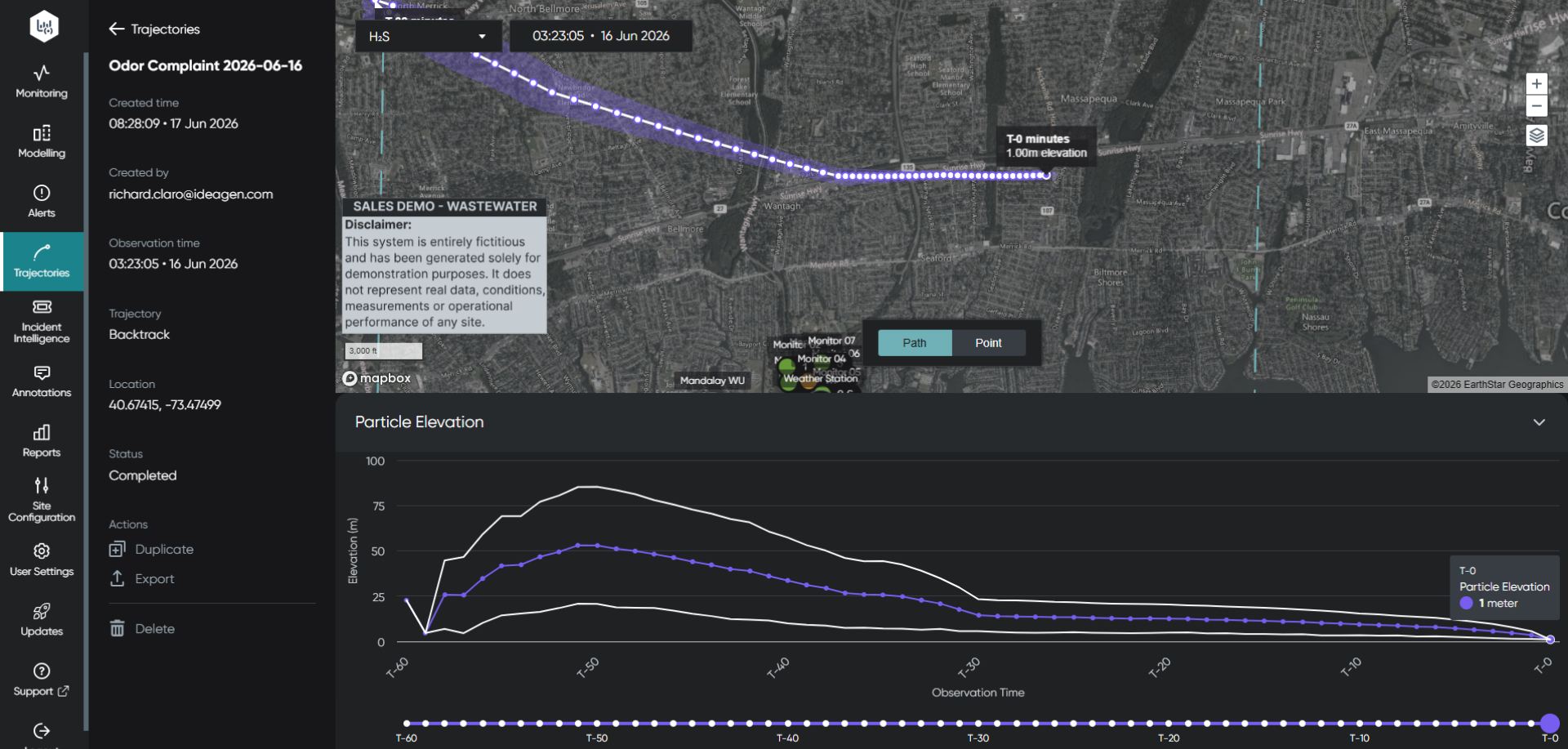
View the configured backward trajectory on the map. The map shows the mean trajectory path with a purple line, and dots mark 1-minute intervals. An ad-hoc trajectory run helps users track wind origin or direction during incidents involving odours or emissions.